

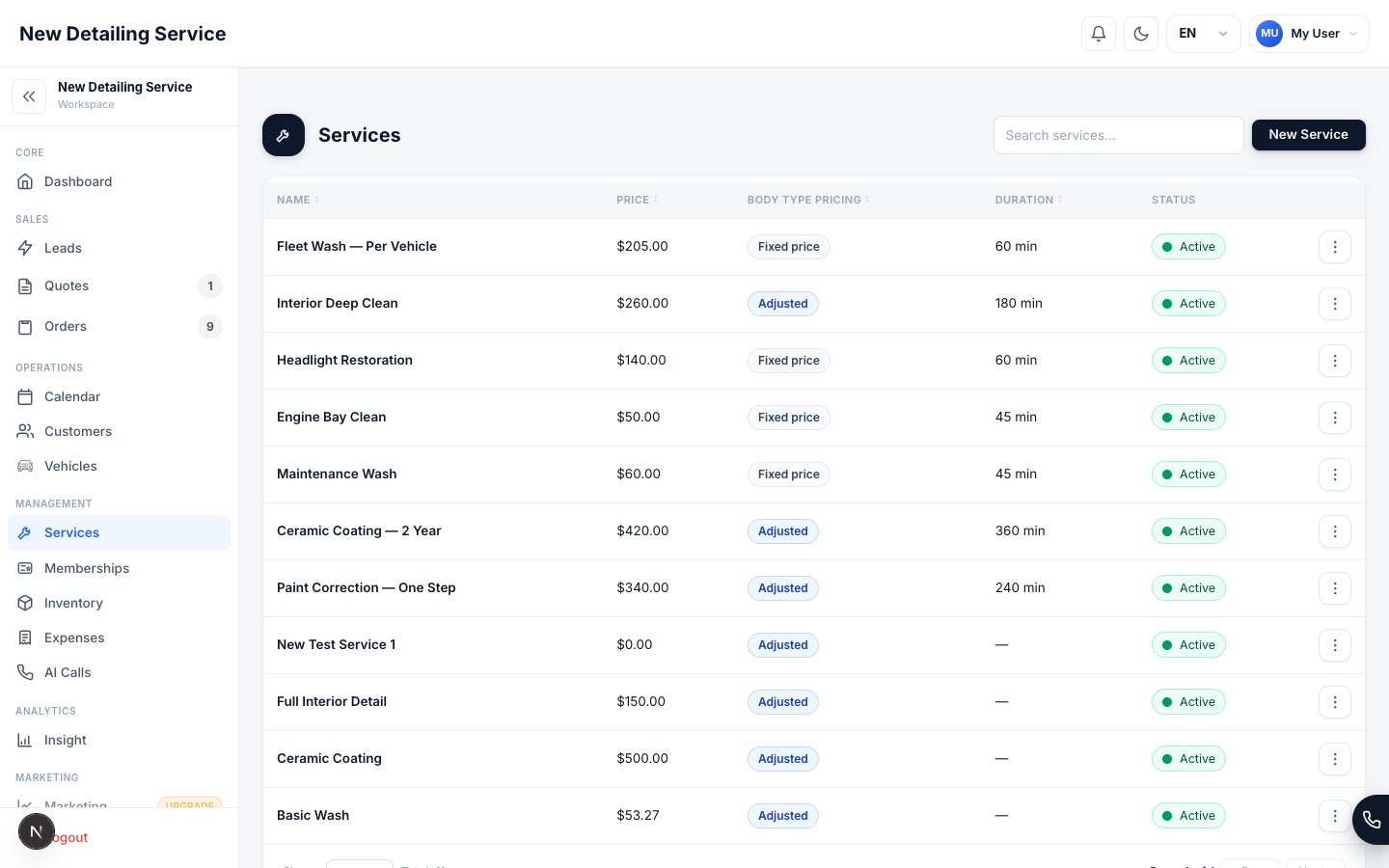
Services & Pricing — manage service names, prices, durations, booking visibility, and AI-sellable status.
Service fields
Body type pricing
Body type surcharges let the same service have different prices depending on the vehicle. The surcharge is a percentage applied on top of the base price:- Sedan (0% surcharge): $200.00
- SUV (25% surcharge): $250.00
- Truck (30% surcharge): $260.00
Configure surcharge percentages under Settings → Vehicle Body Types, then enable Body Type Adjustment only on services that should use them. Services that opt out keep their base price for every body type.
Setting up your service catalog
1
Add your core services
Start with the services you offer most frequently — exterior detail, interior detail, paint correction, ceramic coating, window tint, wash packages, and any signature add-ons.Go to Settings → Services & Pricing and click Add Service.
2
Set the base price and duration
Enter the price for a standard sedan or your most common vehicle. For body type adjustments, the surcharge handles the rest.Set the service’s expected working time. When a Bookable or AI Sellable service has no duration, the CRM uses 60 minutes. Explicit values such as 15, 30, or 45 minutes are preserved.
3
Choose availability flags
For each service, decide:
- Bookable — should customers be able to select this online?
- AI Sellable — should the AI Voice Assistant be able to quote and recommend this?
- Featured Position — if bookable, where should it appear on the booking page (1 = top)?
4
Deactivate services you no longer offer
Toggle a service to Inactive instead of deleting it. Inactive services are removed from the quote and order forms but their history on past jobs is preserved.
Managing bookable services
Services marked Bookable appear in Online Booking. You can feature up to 8 services with specific ordering positions — manage them under Settings → Website Integration → Online Booking → Services & Availability. Service duration is not the same as slot increment. Duration is how long the work occupies the schedule. Slot increment controls how often a possible start time appears and is managed under Settings → Scheduling & Availability.AI-sellable services
When the AI Voice Assistant is enabled, it can recommend services from your catalog and quote prices to callers. Only services marked AI Sellable are included in its knowledge base. Use this flag to keep the assistant focused on the services your business actually wants to sell over the phone.Pricing best practices
- Set a true base price — use your sedan or smallest vehicle price as the base, and let surcharges handle larger vehicles
- Keep catalog names consistent — the name on the service is the name that appears on every quote, order, invoice, and report
- Add accurate estimated durations — the 60-minute value is a safe fallback, but accurate durations produce better availability
- Review pricing when you change rates — updating a service base price takes effect on all new quotes and orders immediately; it doesn’t change existing records
Online Booking
Configure which services appear online and in what order.
Scheduling & Availability
Configure shared hours, slot increment, capacity, and resources.
Vehicles
Add vehicle body types and their surcharge percentages.
Quotes
See how service pricing and surcharges apply in quotes.
AI Assistant
Configure which services the AI can recommend on calls.