

ORD-0042, Q-0015). Order Management lets you control exactly how those numbers look and what they start from — useful when migrating from another system or when you want numbering to match your existing invoice format.
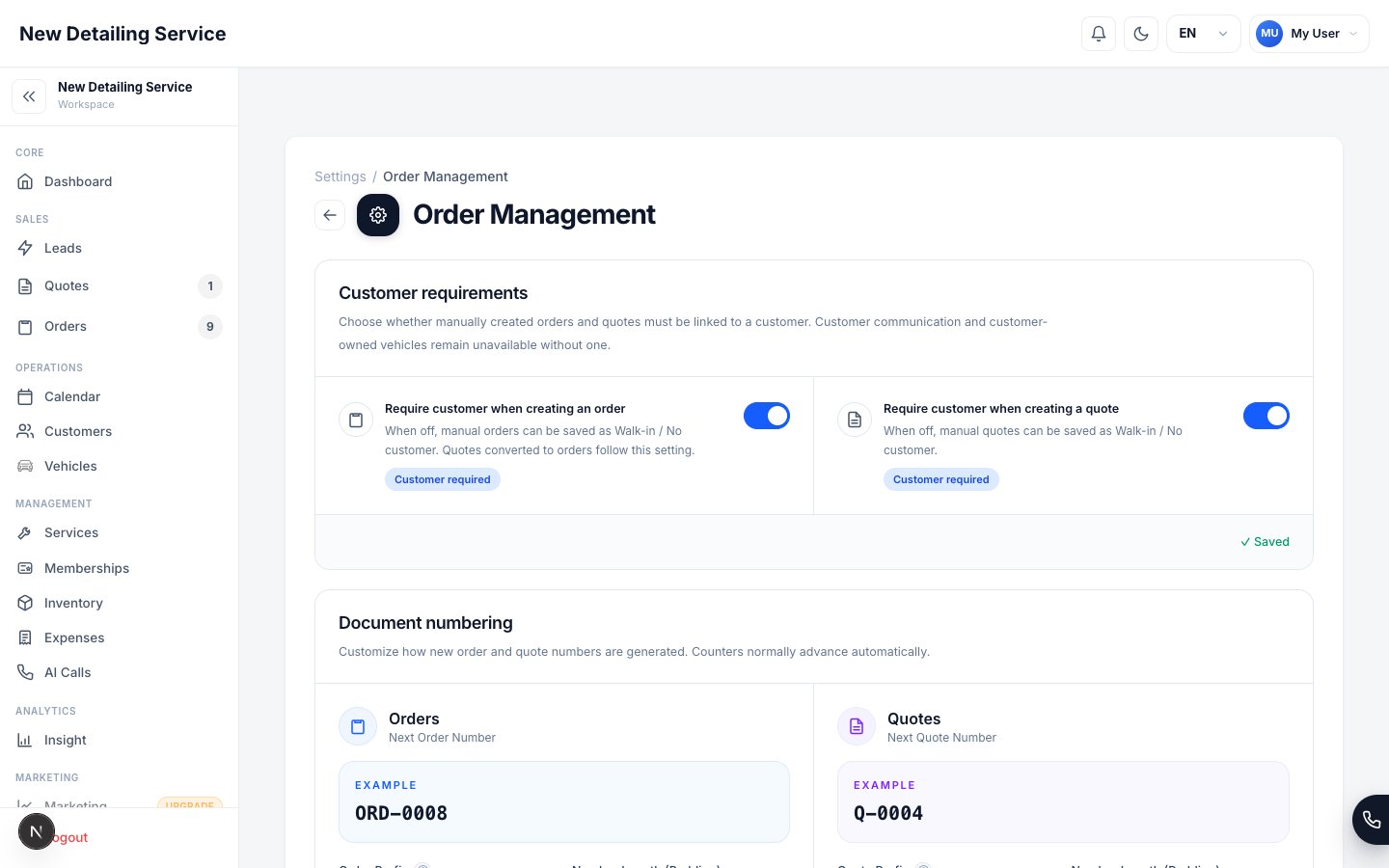
What you can configure
The preview updates as you type so you can see exactly what the next number will look like before saving.
Setting up numbering
1
Open Order Management settings
Go to Settings → Order Management.
2
Set your prefix
Choose a short prefix that makes sense for your business. Common choices:
ORD-for ordersINV-if you prefer “invoice” style numberingQ-orQUO-for quotes- Leave blank if you want numbers only
3
Set the digit padding
Padding controls the minimum number of digits. A padding of 4 means numbers run as
0001, 0042, 1000. Once numbers exceed the padding (e.g., 10000 with 4-digit padding), they simply grow longer — no numbers are skipped.4
Set the starting number
If you’re migrating from another system, set the starting counter to continue your existing numbering sequence. For example, if your last invoice was #127, set the next number to 128.
5
Save
Save the settings. The next order or quote created will use the new format immediately.
Resetting the counter
You can reset either counter back to1 using the reset button.