

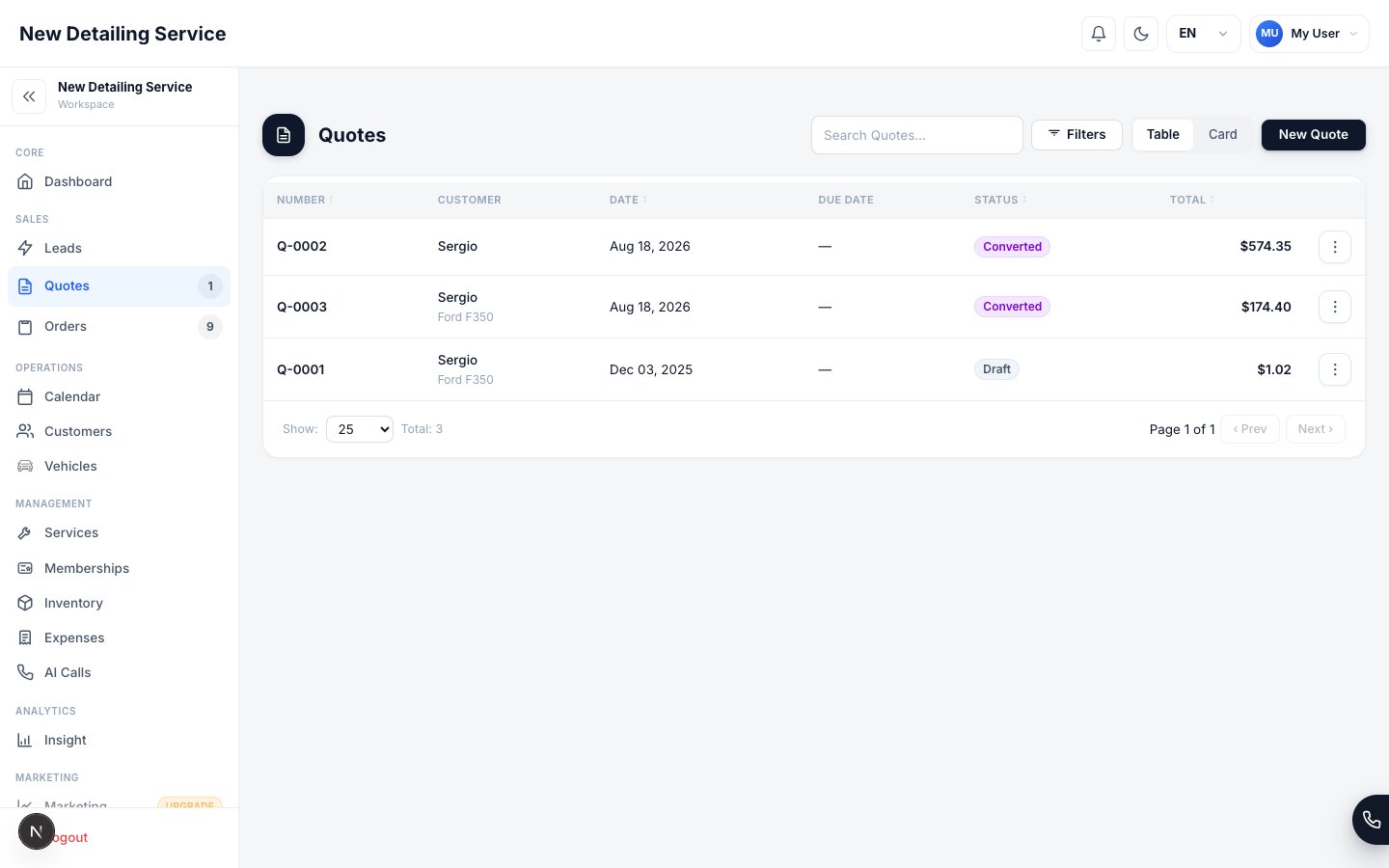
Quotes list — draft, sent, accepted, and declined estimates stay organized before they become orders.
Quote statuses
How pricing works in a quote
When you add a vehicle and select services, the CRM applies body type pricing automatically to services with Body Type Adjustment enabled. An eligible service priced at $200 for a sedan becomes $240 for an SUV with a 20% surcharge — no manual calculation needed. You can also adjust pricing at the quote level:- Discounts — apply a flat dollar amount or a percentage off the subtotal
- Extra fees — add delivery charges, detailing fees, or other line items
- Tax — calculated from your workspace tax rate setting
- Tips — an optional field on the customer-facing view
Building a quote
1
Create a new quote
Go to Quotes and click New Quote. Select the customer from your existing records — or add a new one on the spot if this is their first visit.
2
Select the vehicle and services
Choose the customer’s vehicle. If they have multiple vehicles on file, you can add them all to the same quote. For each vehicle, select the services being performed.Body type pricing applies automatically as soon as you select the vehicle. For services with Body Type Adjustment enabled, the line item total reflects the surcharge for that vehicle’s body type. Other services keep their base price.
3
Add any custom items or adjustments
If a job requires something outside your standard service catalog, add a custom line item directly. You can also:
- Apply a discount to the entire quote
- Add a one-time extra fee (mobile service, travel, materials)
- Review the tax calculation
4
Save and share
Keep the quote in Draft while you’re still reviewing it. When it’s ready, move it to Sent.From the quote, you can generate the ordinary PDF to download or send directly.
If your plan includes Quote Portal, you can also publish a protected customer
link for review and response.
Share a quote for customer review
The Quote Portal adds a secure response flow beside the existing PDF and manual status actions. The customer verifies by phone or email before the quote details appear, then can Approve, Decline, Request changes, or download the same branded PDF available to your team. The portal keeps one customer link across replacement revisions and records which exact version received approval. See Quote Portal for publishing, delivery, revision behavior, and troubleshooting.Quote approval is not an electronic signature and does not create an order
automatically. Your team still chooses when to convert accepted work.
Converting a quote to an order
When the customer approves the work, open the quote and click Convert to Order. The order is created automatically with:- The same customer and vehicles
- All services and pricing from the quote
- The discount, fees, and tax already applied
Once a quote is converted to an order, changes to the order don’t update the original quote. The quote becomes a historical record of what was estimated.
Multi-vehicle quoting
One of the most practical features for detailing businesses. When a customer brings in two or three vehicles, you don’t create separate quotes. Add all vehicles to the same quote:- Each vehicle gets its own services
- Body type pricing applies per vehicle
- The quote total reflects the full job across all vehicles
- A single PDF shows the customer everything itemized
Orders
Understand the order lifecycle after a quote converts.
Quote Portal
Publish a protected link and collect a version-specific customer response.
Services & Pricing
Configure the service catalog and body type surcharges that drive your quote pricing.