

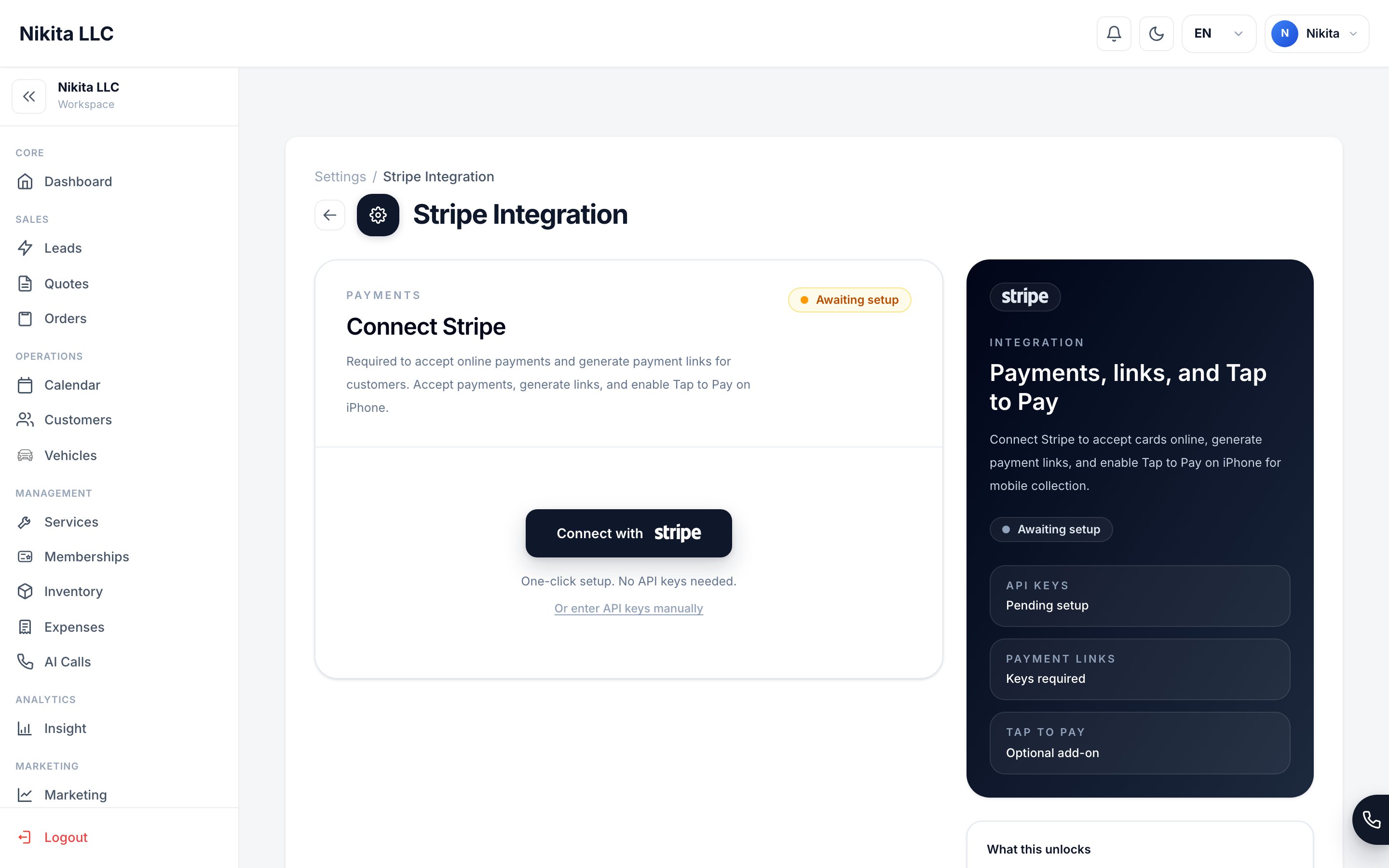
Stripe payment settings — connect Stripe, payment links, and Tap to Pay from one place.
Payment methods at a glance
Setting up Stripe
Stripe is required for Tap to Pay and payment links. Manual methods (cash, Zelle, etc.) work without Stripe.1
Open Stripe integration settings
Go to Settings → Stripe Integrations.
2
Enter your Stripe credentials
Add your Stripe Publishable Key and Secret Key. You can find these in your Stripe Dashboard under Developers → API Keys.Use live mode keys for real payments. Use test mode keys only during setup and testing.
3
Add Terminal Location ID for Tap to Pay
If you want to accept contactless payments on iPhone, add a Terminal Location ID from your Stripe Dashboard. Go to Terminal → Locations in Stripe and copy the location ID for your business address.
4
Save and verify
Save your settings. The payment options become available on orders immediately after Stripe is connected.
Collecting payment from an order
1
Open the order
Open the order you want to collect payment for. Confirm it shows Unpaid status.
2
Choose a payment method
Select the method based on the situation:
- Tap Tap to Pay if the customer is present with a card or phone
- Tap Payment Link to generate a URL to send via text or email
- Tap QR Code to display a scannable code
- Select Manual and choose the method (cash, Zelle, etc.) to record an offline payment
3
Confirm payment
Once payment completes, the order updates to Paid automatically. The payment amount and method are recorded on the order and appear in your Insights reports.
Partial payments
The CRM supports partial payments for deposits, installments, or split billing:- Record the first payment — the order shows as Partially Paid
- Record additional payments as they come in
- The order updates to Paid when the full amount is collected
How payments connect to reporting
Every payment recorded on an order — regardless of method — feeds your financial reports:- Revenue on the dashboard updates when the order is Paid
- Payment Methods report in Insights shows the breakdown of how customers are paying
- P&L report includes paid order totals in the revenue line
Tap to Pay on iPhone
Step-by-step guide to the Tap to Pay checkout flow on iPhone.
Payment methods
Add and manage custom manual payment options (cash, Zelle, ACH).
Orders
Understand how payment status tracks alongside job status.
Insights
Review the Payment Methods report and P&L in Insights.
Payments & Card Security
How card data is protected — and why it never touches our servers.