

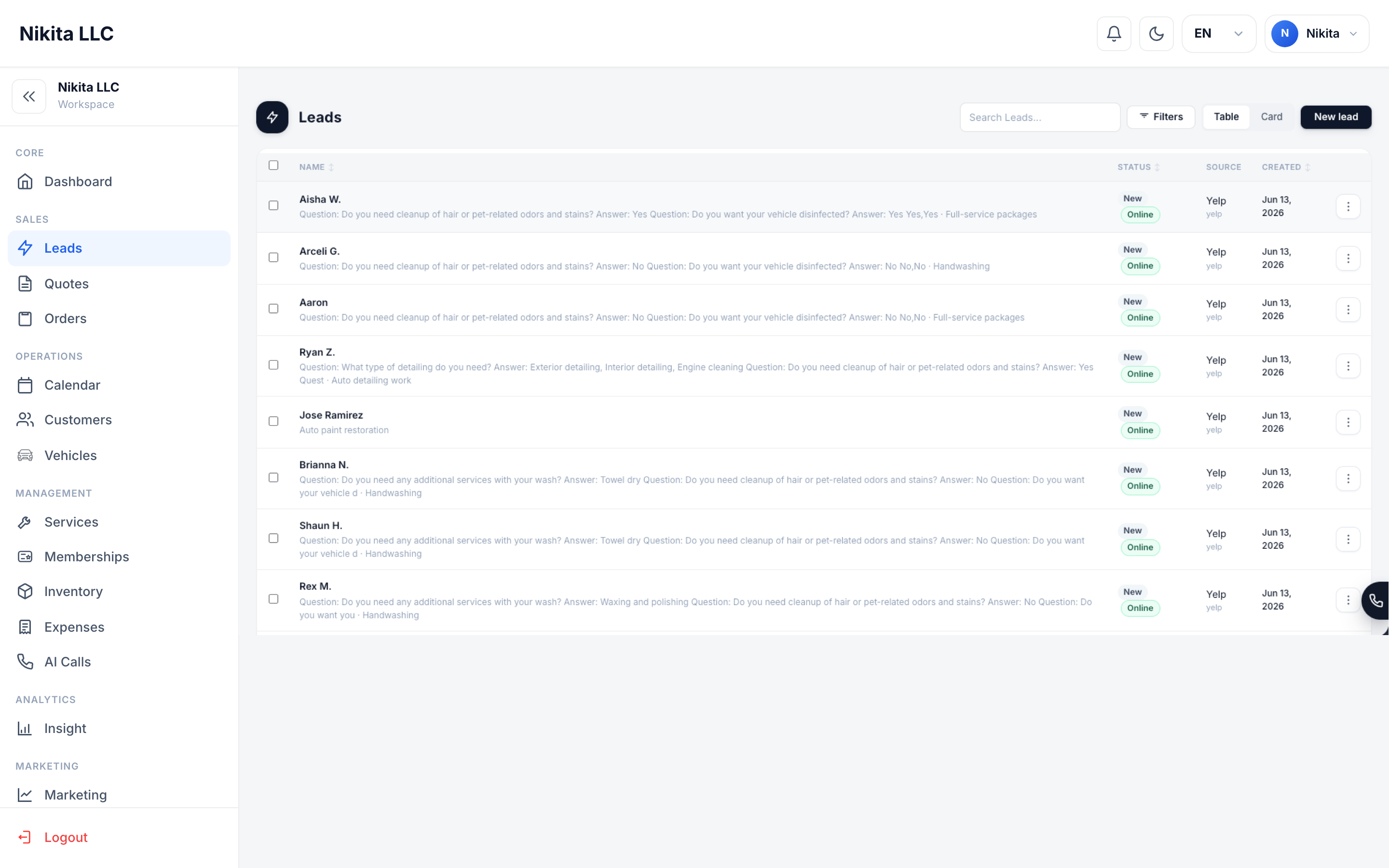
Leads list — statuses, source, contact details, and follow-up context in one place.
Leads that come through your website forms or booking page are automatically tagged as public leads, with their source and UTM data preserved. This is how you connect marketing spend to actual bookings.
A lead you add manually stays unattributed unless you choose a source. The CRM does not label manual entries as Website automatically.
Lead statuses
The lead-to-customer workflow
1
Review new leads
Open Leads to see the newest requests at the top. Public leads (from your website or booking page) are flagged so you can prioritize inbound interest.
2
Qualify and follow up
Review the lead’s details — what service they requested, which vehicle, what they wrote in their message. Move the lead to In Progress as soon as you start follow-up.
3
Convert when they're ready
When a lead is qualified and ready to book, convert them. The CRM gives you two paths:
- Convert to customer — creates a customer record with the lead’s contact info pre-filled, ready for a quote
- Create order from lead — skips the quote and creates a live order directly, useful for simple jobs where pricing is already agreed
Lead attribution
A lead can carry information about where it came from. When it arrives through a tracked campaign, the CRM stores:
This attribution data persists when you convert the lead to a customer or order. The converted record also receives a readable note with the lead’s name, without exposing an internal database ID. Your Marketing and Insights reports can then show you which channels generate leads that actually close — not just which channels generate the most clicks.
Bulk actions
When you need to work with multiple leads at once:- Bulk status update — move a group of leads to the same status simultaneously
- Bulk delete — remove leads that are clearly junk or spam
When to use leads vs. orders directly
Website leads
Set up lead capture forms for your website.
Online Booking
Configure whether your booking page creates leads or orders automatically.
Customers
Manage the customer records created when leads convert.
Marketing
Analyze which channels are generating your best leads.