

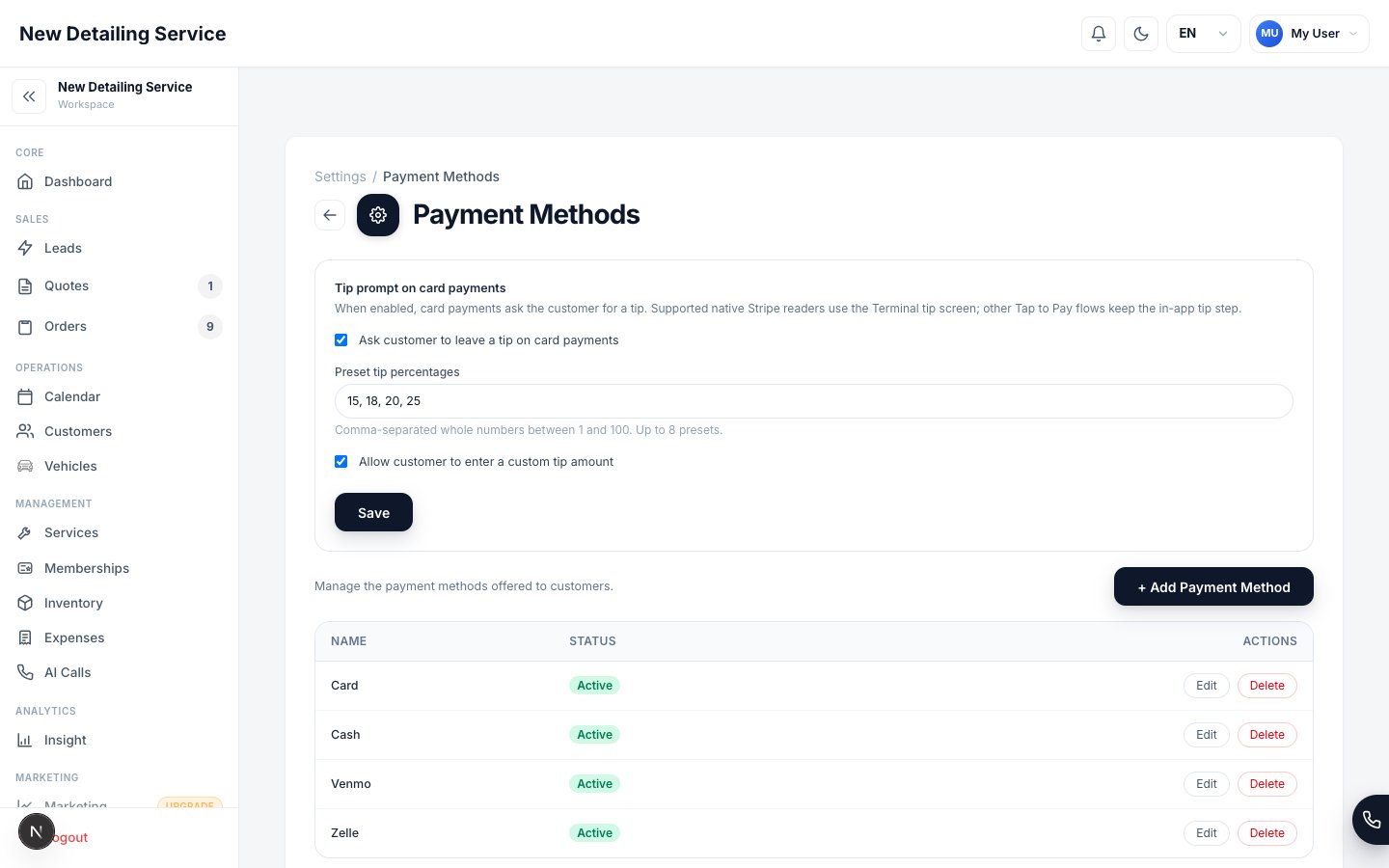
This settings page is for manual payment methods only. For Stripe, Tap to Pay, and payment links, go to Settings → Stripe Integrations.
What you can do
- Add new payment methods with custom names
- Edit an existing method’s name
- Mark methods as active or inactive
- Delete methods you no longer use
Managing payment methods
1
Open Payment Methods settings
Go to Settings → Payment Methods.
2
Add a new method
Click Add and enter a display name. The name is exactly what your team sees in the payment method dropdown on orders.Keep names short and clear:
CashZelleVenmoCheckACHBank Transfer
3
Set active status
New methods are active by default. Inactive methods don’t appear in the order form dropdown — useful for temporarily removing a method without deleting it.
4
Save and verify
Save your changes. Open a test order to confirm the new method appears in the payment dropdown.
Inactive vs. deleted methods
Use inactive when you might re-enable the method later. Use delete only when you’re certain you’ll never use it again.
Payments
See how payment methods are used when collecting payment on orders.
Stripe Integrations
Set up Stripe for card processing, payment links, and Tap to Pay.