

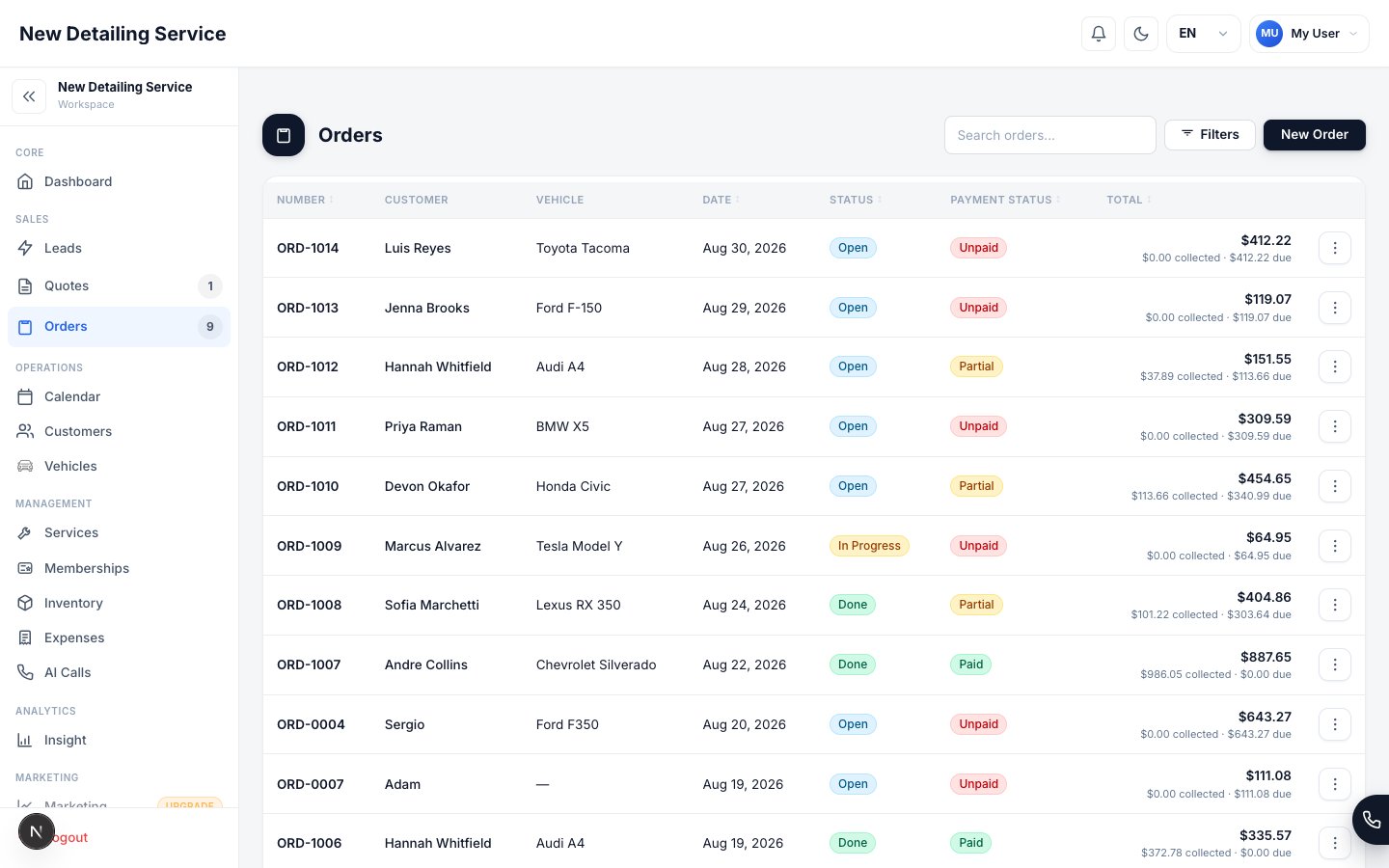
Order statuses
Orders move through four statuses as work progresses. Payment status is tracked separately — a job can be Done and still unpaid.Fields on the order form
Vehicles & Services
Each order can contain multiple vehicles. For each vehicle you select the services being performed and any materials used.Adding a vehicle
Select from the customer’s existing vehicles using the vehicle dropdown. Use + New Vehicle to add a vehicle without leaving the order form — the vehicle saves to the customer’s profile automatically.Adding services
Type to search your service catalog, then set the price and quantity. Services with Body Type Adjustment enabled adjust automatically for the vehicle’s body type. You can also:- + Add Service — search your catalog
- + Add Custom Service — one-off line item with a custom name and price, not from the catalog
Adding materials
Click + Add Material under any service to attach inventory items used on that vehicle. Each material records:- Which inventory item was used
- Quantity consumed
- The unit cost at the time of use (captured for COGS accuracy)
Multiple vehicles
Click + Add Vehicle to Order to add a second or third vehicle to the same order. Each vehicle has its own services, materials, and body type pricing. One order, one invoice, one payment.Working an order from start to finish
1
Create the order
Go to Orders → New Order or convert directly from an accepted quote. Select the customer, set the scheduled date and time, and assign it to the appropriate staff member.
2
Add vehicles, services, and materials
Select the vehicle, add services, and attach materials if you track inventory. For services that use Body Type Adjustment, confirm the line item price reflects the vehicle’s body type.
3
Move status as the job progresses
Change the order status from Open to In Progress when work begins, then to Done when the job is complete. These status changes update what Operations Console and My Day show in real time.
4
Collect signature and generate invoice
From inside the order, capture the customer’s digital signature before or after handoff. Generate a PDF invoice to share via text, email, or print.
5
Record payment
Collect payment and update the payment status. Available methods depend on your configuration:
The order updates to Paid and the revenue flows into your dashboard and Insights reports.
What happens when you mark an order Done
Closing a job is more than a status change — it triggers three automatic actions:- Inventory deducts — each material attached reduces your stock by the quantity used
- COGS records — the cost of materials is captured at the unit price they had at the time of use
- Revenue posts — the order total becomes part of your financial reporting
Order numbering
Orders receive auto-incrementing numbers with a configurable prefix and padding (e.g.,ORD-0042). You can change the prefix, digit count, and starting number under Settings → Order Management.
Quotes
Build estimates and convert them to orders in one click.
Inventory
Manage the materials catalog your orders draw from.
Payments
Configure Stripe, Tap to Pay, and payment methods for your workspace.
Insights
Review how your completed orders affect revenue, COGS, and profit.