

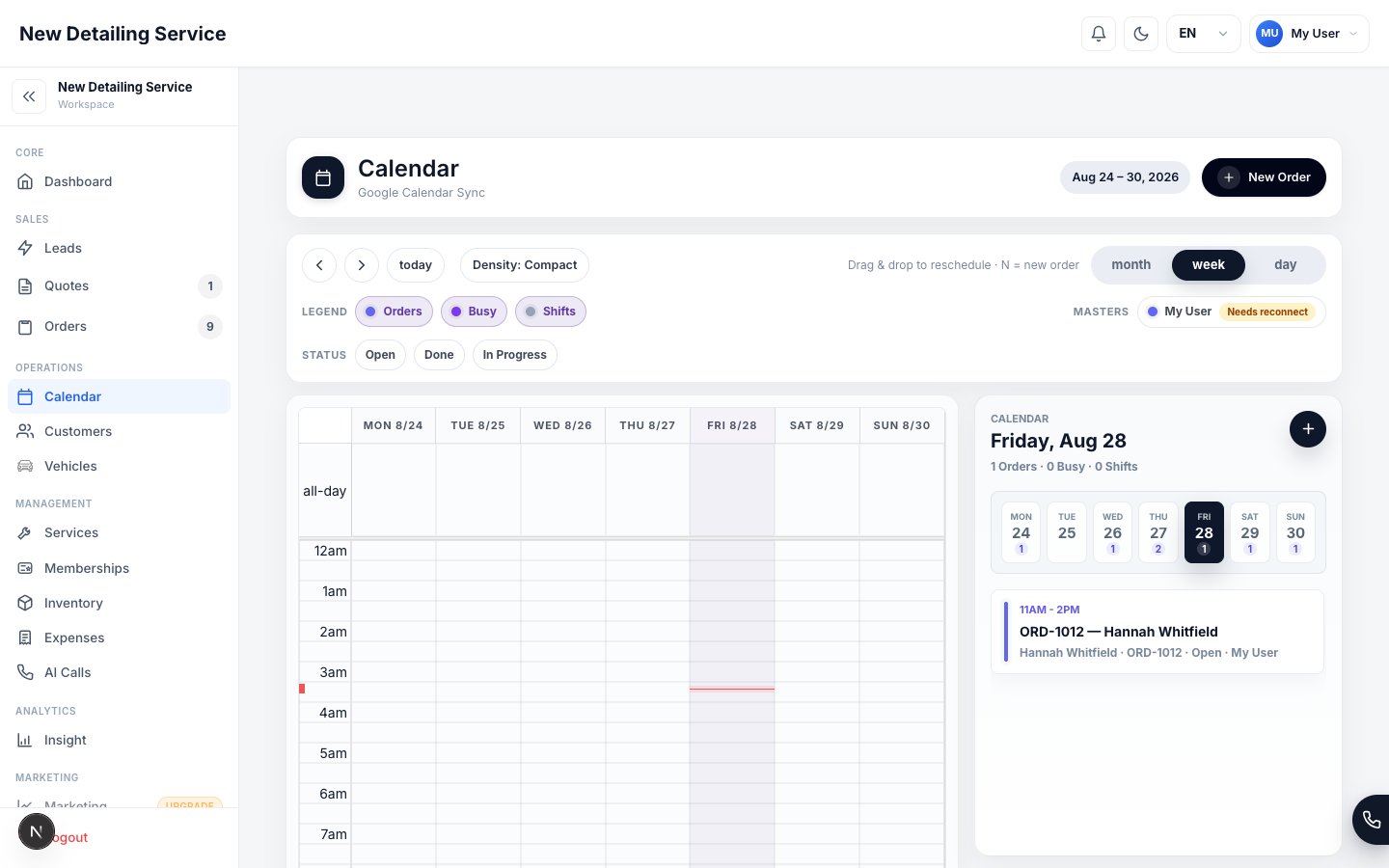
Calendar view — scheduled jobs, staff assignments, and busy blocks in one shared schedule.
What appears on the calendar
Orders show the customer name, order number, status badge, and assigned staff at a glance. Clicking an order opens the full order record.
Role-based calendar access
What you see on the calendar depends on your role and permissions:
Owners and admins typically have full team access. Technicians usually see only their own schedule unless the workspace has enabled broader visibility.
Managing shifts
Shifts define when a staff member is working. They appear as background blocks on the calendar and feed the team load calculations on the dashboard.1
Create a shift
Open the Shifts section (Settings → Staff & Shifts → Shifts tab) or click an open time slot on the calendar. Select the staff member, enter the start and end time, and add notes if needed.All times are entered in your workspace timezone and displayed to each user in their local context.
2
Edit or delete a shift
Click the shift event on the calendar to open it. You can edit the start/end times, notes, or delete the shift entirely. Staff members can manage their own shifts; managers and admins can manage others’ shifts based on their permissions.
Managing external events (busy blocks)
External events represent time that’s unavailable for scheduling — a personal appointment, a training session, or anything synced from a connected calendar.- Create a busy block by clicking an open slot and selecting External Event
- Set a title, start time, and end time
- These events appear on the calendar alongside orders and can remove that staff member from booking availability in Team and Advanced resources modes
Google Calendar sync automatically imports events from your connected personal calendar as external busy blocks. Team members see that the slot is occupied without seeing the details of the personal event.
Scheduling conflict detection
When you assign an order to a staff member and schedule it at a time they already have a conflicting order or busy block, the CRM flags the conflict before saving. You can:- Resolve the conflict — change the time or reassign to a different staff member
- Override — acknowledge the conflict and schedule anyway if your workflow allows it
Calendar sync
Google Calendar
Connect your Google Calendar under Settings → User & Security → Calendar Sync. Once connected:- Your Google Calendar events import as external busy blocks
- New orders assigned to you can optionally sync to your Google Calendar
- Changes to orders update the corresponding Google Calendar event
Apple Calendar (read-only link)
The CRM provides an.ics subscription link for Apple Calendar. Add it to Calendar on Mac or iPhone to see your CRM schedule in read-only mode alongside your personal calendar.
Navigating the calendar
Use the view switcher to toggle between day, week, and month views depending on your planning horizon. The day view is most useful for a busy single-day operation; the week view helps with capacity planning; the month view gives a high-level overview.Orders
Manage the jobs that appear on the calendar.
Staff & Roles
Set up staff members, roles, and shift permissions.
Scheduling & Availability
See how shifts, resource hours, and external events affect bookable times.
User & Security
Connect Google Calendar or get your Apple Calendar subscription link.