

The four roles
Every team member has one role. The role sets their starting level of access.Technicians see only their assigned jobs. This is the single most useful privacy control for most shops — your detailers can do their work without seeing your full customer list, pricing, or financials.
Fine-grained permissions
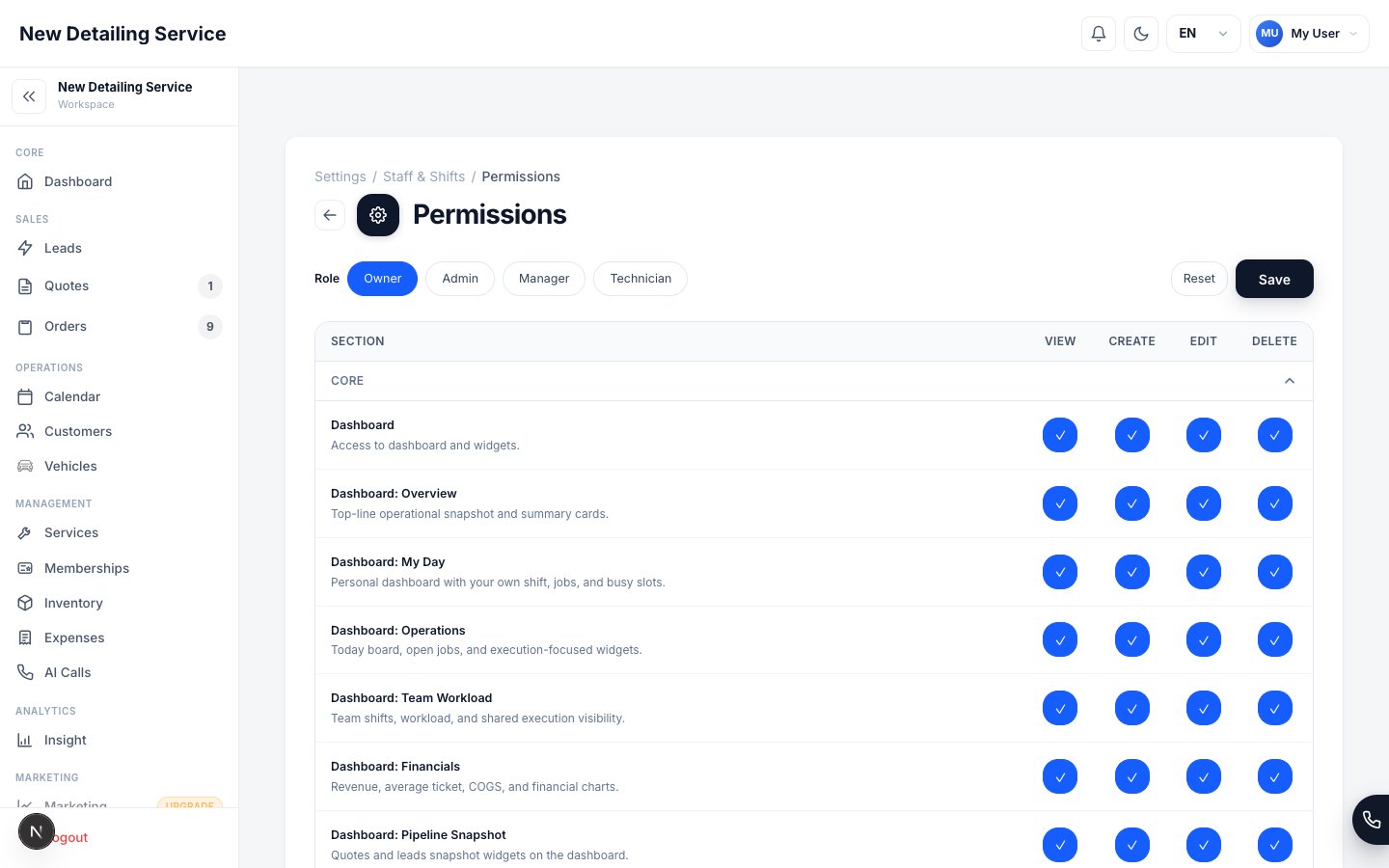
Beyond the role, you can fine-tune what each person can do in each area of the app. Most record areas break access into four actions:- View — can open and read it
- Create — can add new records
- Edit — can change existing records
- Delete — can remove records
Permission areas
You can set permissions for these areas of the CRM:Scheduling & Availability is visible to a team member who can access either Online Booking settings or AI Voice Assistant settings. Inside Website Integration, Website Leads and Online Booking retain their separate settings permissions.
Setting permissions
1
Open permissions
Go to Settings → Staff & Shifts → Permissions.
2
Pick a role or team member
Choose whose access you want to adjust.
3
Toggle each area
Turn View / Create / Edit / Delete on or off for each area to match what that person should do.
4
Save
Changes take effect right away the next time they load the page.
Common setups
Common setups
- Solo owner: You’re the Owner — nothing to configure.
- Owner + detailers: Keep yourself as Owner; make detailers Technicians so they only see their assigned jobs.
- Owner + office manager + detailers: Owner for you, Manager for your office lead (operations and reports, but you keep billing), Technicians for detailers.
Staff & roles
Invite team members and manage shifts.
Security
How access control protects your data.
User Security
Passwords, 2FA, and sessions.
Account & billing
Plans, seats, and who can change billing.