

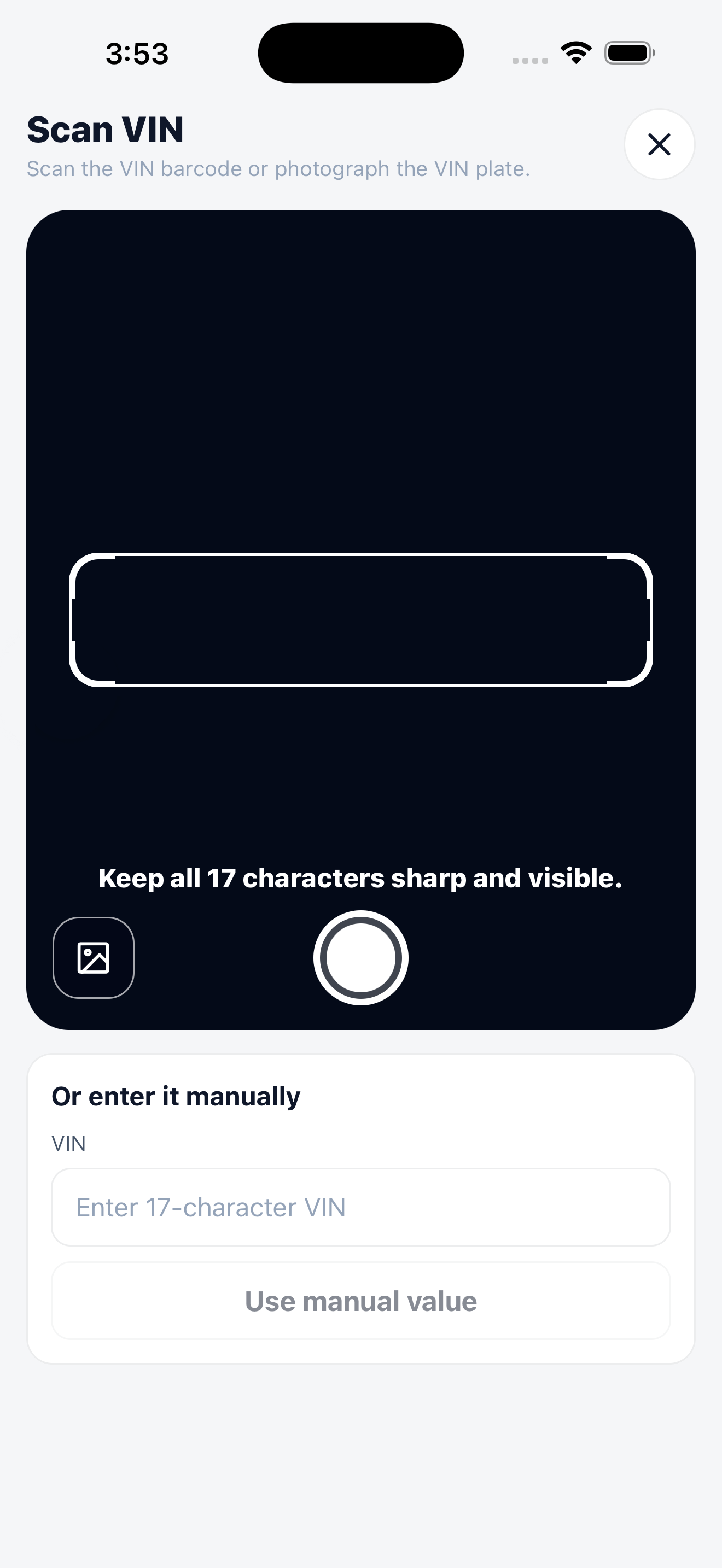
The scanner keeps manual entry one tap away.
What you’ll need
- Your phone, signed in to Auto Detailing CRM.
- The vehicle’s VIN, usually on the lower corner of the windshield or the driver’s door jamb.
- Or the vehicle’s license plate when you want to look up an existing vehicle.
How to scan a VIN
1
Start a new vehicle
On a customer or vehicle screen, choose to add a vehicle and tap the VIN scan option.
2
Point your camera at the VIN
Line up the VIN in the camera frame. The app reads it for you.
3
Review the details
The make, model, and year are filled in automatically. Check them, add anything missing (color, plate, notes), and save.
How to scan a license plate
Plate scan helps when the vehicle is already in your CRM and you want to find it without typing.1
Open the scan action
From an order or vehicle field, tap the scan option near the customer, VIN, or plate field.
2
Point your camera at the plate
Hold the plate steady in the frame. On iPhone, the native scanner can read the plate directly from the camera.
3
Select the matching vehicle
If the plate matches one vehicle, the CRM selects the customer and vehicle for you. If more than one match is possible, choose the correct vehicle from the results.
Scan from an order
When you start an order, use the scan action in the customer search area to look up a vehicle by VIN or plate. If the scanned value matches an existing vehicle, the order form selects the customer and vehicle automatically so you can move straight to services.When the camera can’t read it
The scanner never traps you. Two fallbacks sit on the same screen:- Use a photo instead. Tap the photo button next to the shutter to run the scan against a picture from your library — useful when the VIN is in an awkward spot and you photographed it earlier.
- Type it. Or enter it manually takes the 17-character VIN by hand. Tap Use manual value and the rest of the flow continues as if it had been scanned.
Scanning is a convenience feature. Always double-check the filled-in details against the actual vehicle, especially trim, year, and plate, before relying on them for pricing or history.
Vehicles
Manage the vehicles you service.
Photo documentation
Capture before-and-after photos on your phone.
Mobile overview
What works best from your phone.
Services & pricing
How body type affects pricing.