

Requirements
Before Tap to Pay is available on an order, make sure all of the following are in place:The checkout flow
1
Open the unpaid order
Navigate to the order you want to collect payment for. Confirm the order shows Unpaid status.
2
Tap the Tap to Pay button
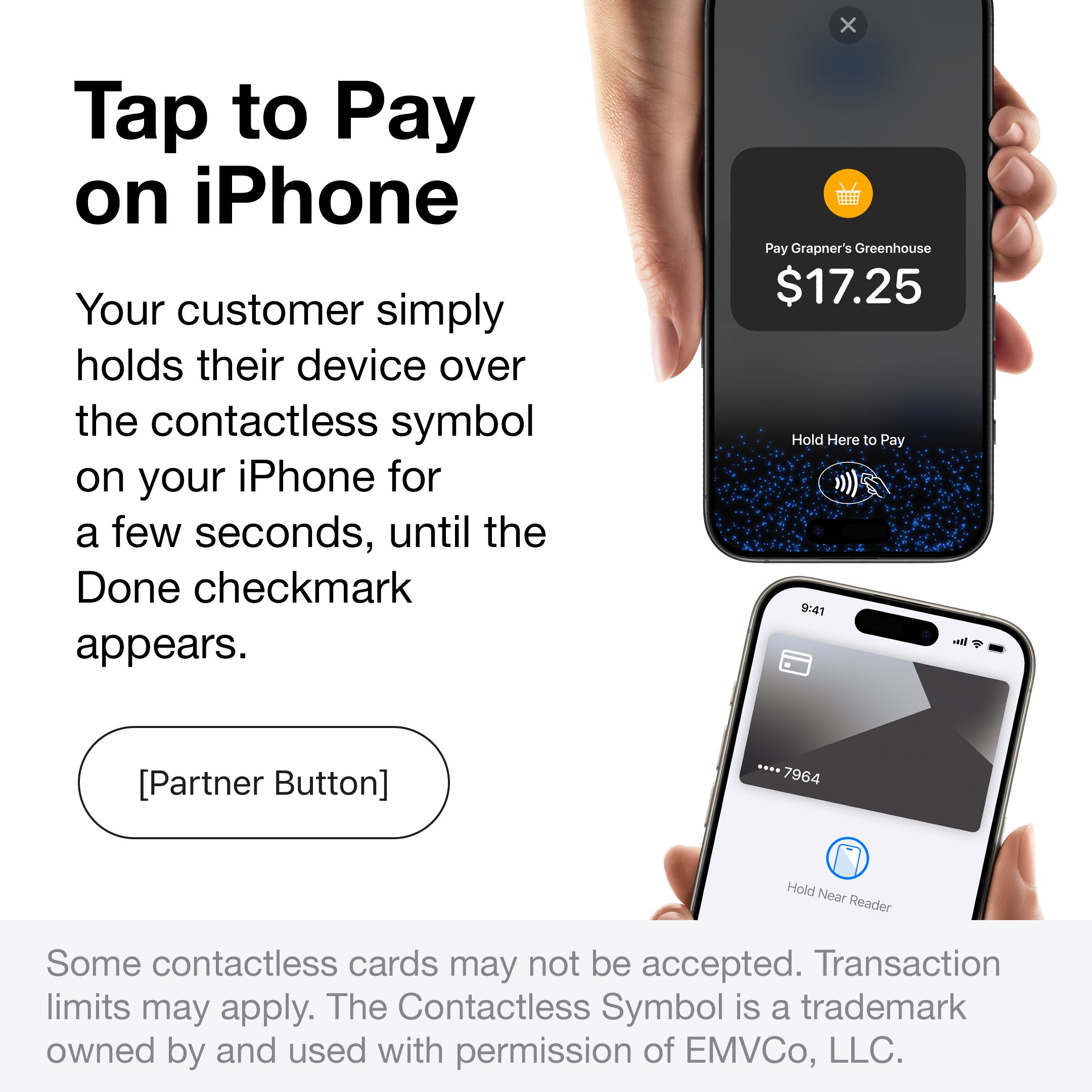
Inside the order, tap the Tap to Pay button. The iPhone activates the NFC reader and the payment screen appears.
3
Customer taps their payment method
Turn the iPhone toward the customer. They tap their:
- Contactless credit or debit card
- iPhone with Apple Pay
- Android phone with Google Pay
- Smartwatch (Apple Watch, Wear OS)
4
Payment processes
Stripe processes the payment in seconds. A success screen confirms the transaction.
5
Order updates to Paid
The order automatically updates to Paid. The payment amount and method are recorded, and the revenue appears in your dashboard and Insights reports.
If a payment is declined
If Stripe declines the payment, the CRM shows the reason in plain language when Stripe provides one. For example, you may see a hint that the card was declined, the payment method is not supported, or the customer should try another card. Use the message on screen to choose the next step:- Ask the customer to try the same card again if the issue looks temporary
- Ask for a different card or wallet if the card was declined
- Use a payment link or manual payment method if Tap to Pay cannot complete at handoff
If Tap to Pay isn’t showing
Work through this checklist if the Tap to Pay button isn’t visible or isn’t working:Stripe isn't connected
Stripe isn't connected
Go to Settings → Stripe Integrations and complete the Stripe connection with your publishable and secret keys.
Terminal Location ID is missing
Terminal Location ID is missing
In your Stripe Dashboard, go to Terminal → Locations and copy the Location ID for your business address. Paste it into Settings → Stripe Integrations → Terminal Location ID.
iPhone doesn't support NFC
iPhone doesn't support NFC
Tap to Pay requires iPhone XS (2018) or later. Older iPhones don’t have the required NFC hardware.
Location permission not granted
Location permission not granted
Stripe Terminal requires location permission to function. On your iPhone, go to Settings → Safari → Location and set it to Allow When Using App (or check the equivalent for the CRM if installed as a home screen app).
Order is already paid
Order is already paid
The Tap to Pay option only appears on unpaid orders. If the order shows Paid, the payment has already been recorded.
What customers pay with
Tap to Pay accepts any contactless payment method supported by Stripe Terminal:- Visa, Mastercard, Amex, Discover (contactless chip cards)
- Apple Pay
- Google Pay
- Samsung Pay
- Contactless prepaid cards
Payments
Overview of all payment methods including payment links and manual recording.
Orders
How payment status tracks alongside job status on orders.