

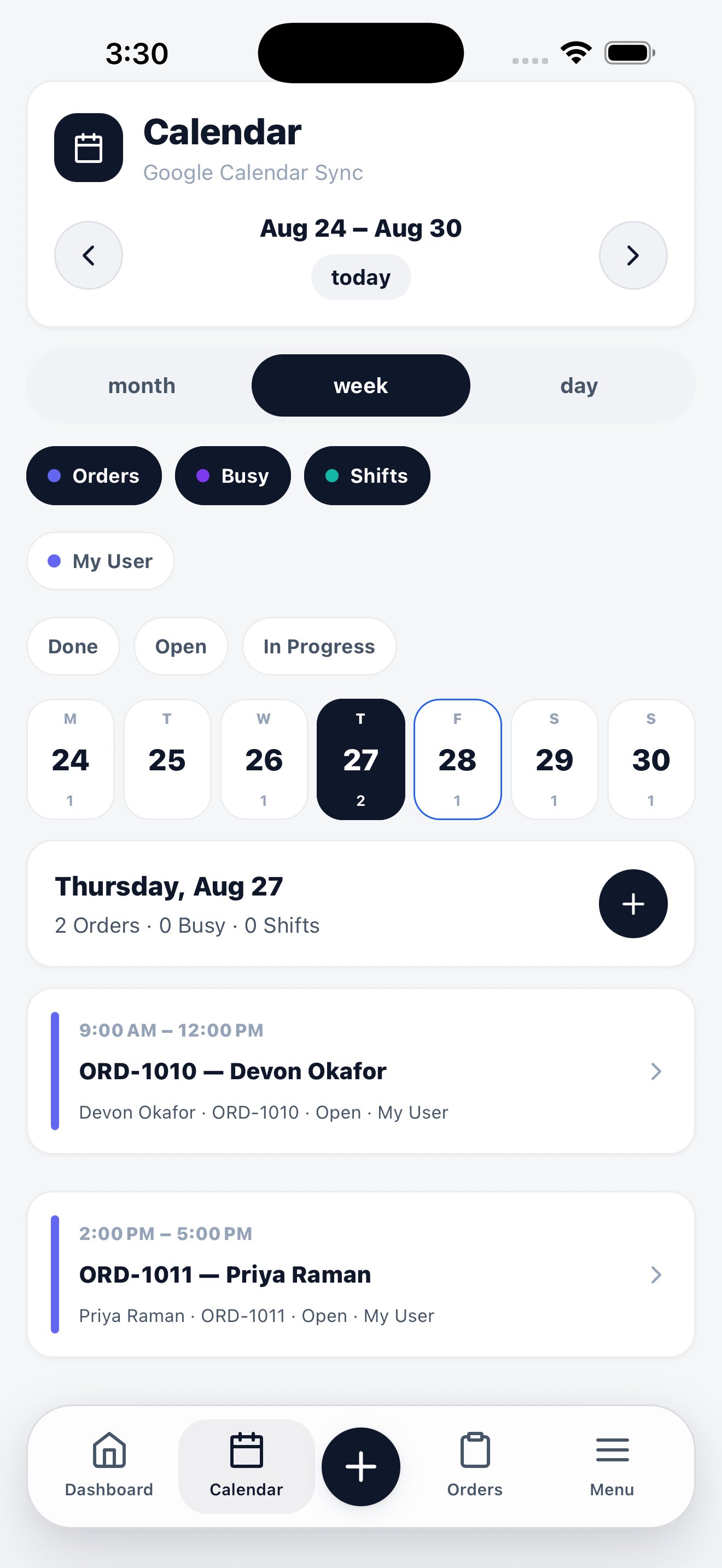
Week view, with the selected day’s jobs listed underneath.
Three views
Switch with the month / week / day control at the top. Move between periods with the arrows, and jump back with today.
Filters
Three layers of filtering stack on top of each other:1
What kind of event
Orders, Busy, and Shifts toggle each event type on and off. Turn off Shifts when you only care about jobs.
2
Whose
The staff filter narrows the calendar to one person. Technicians see themselves by default.
3
What state
Done, Open, and In Progress filter jobs by status — useful for finding what’s still outstanding today.
The day panel
Selecting a day opens its detail underneath the calendar: a header with the date and a count of orders, busy blocks, and shifts, then each job as a card with its time window, order number, customer, status, and assignee. Tap a card to open the order. The + on the day header creates a new order already dated to that day.Google Calendar sync
When Google Calendar sync is connected for your workspace, the mobile calendar reflects it — the header shows the sync state so you know whether what you’re looking at is complete.Calendar on the web
Scheduling rules, shift setup, and Google Calendar connection.