

The order list
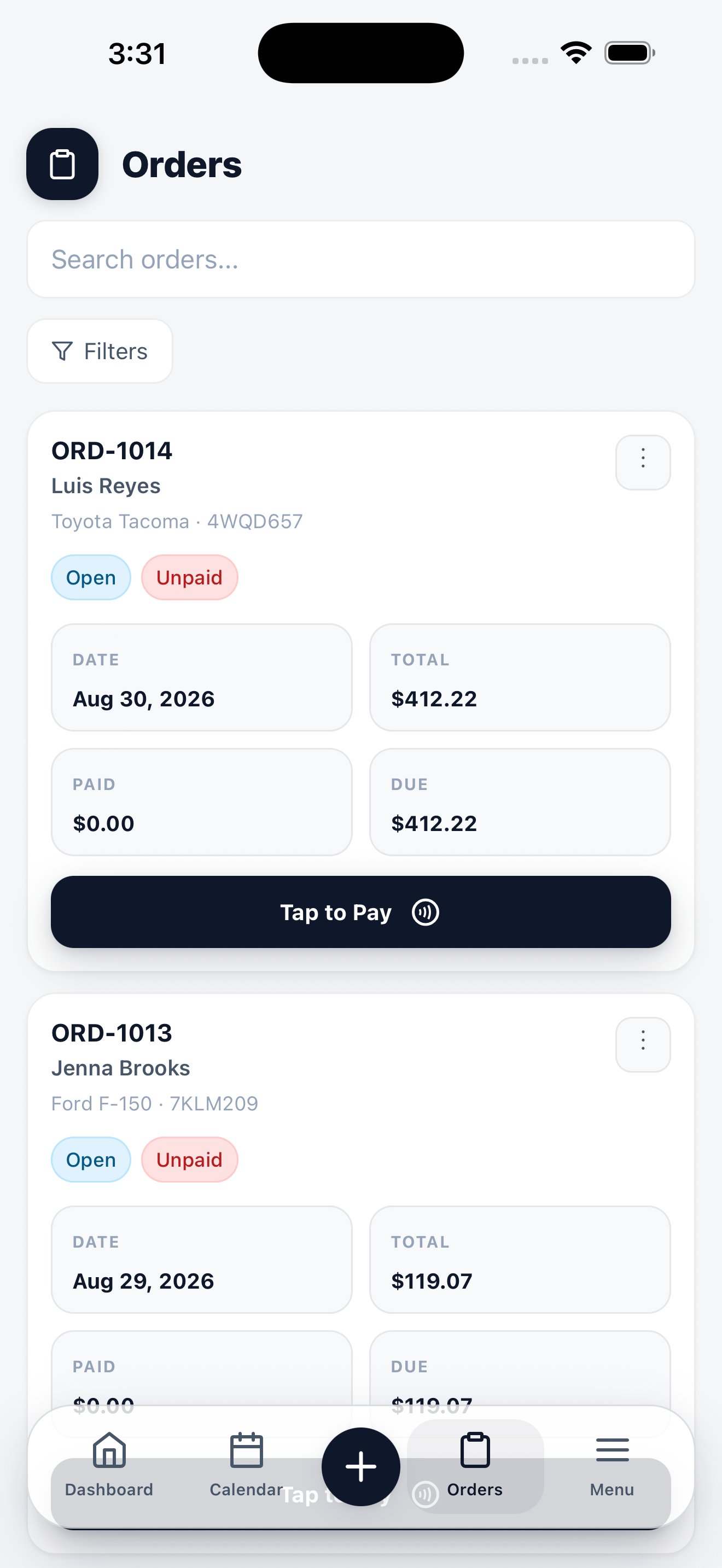
Each card carries the order number, customer, dates, total, and payment state.
Use Search to find an order by number, customer, phone, plate, or VIN. Use Filters to narrow by status, date, or assignee.
Create an order
Tap + → Order, or the + on the order list. The wizard runs in four steps, and the running total stays pinned to the bottom of the screen the whole way.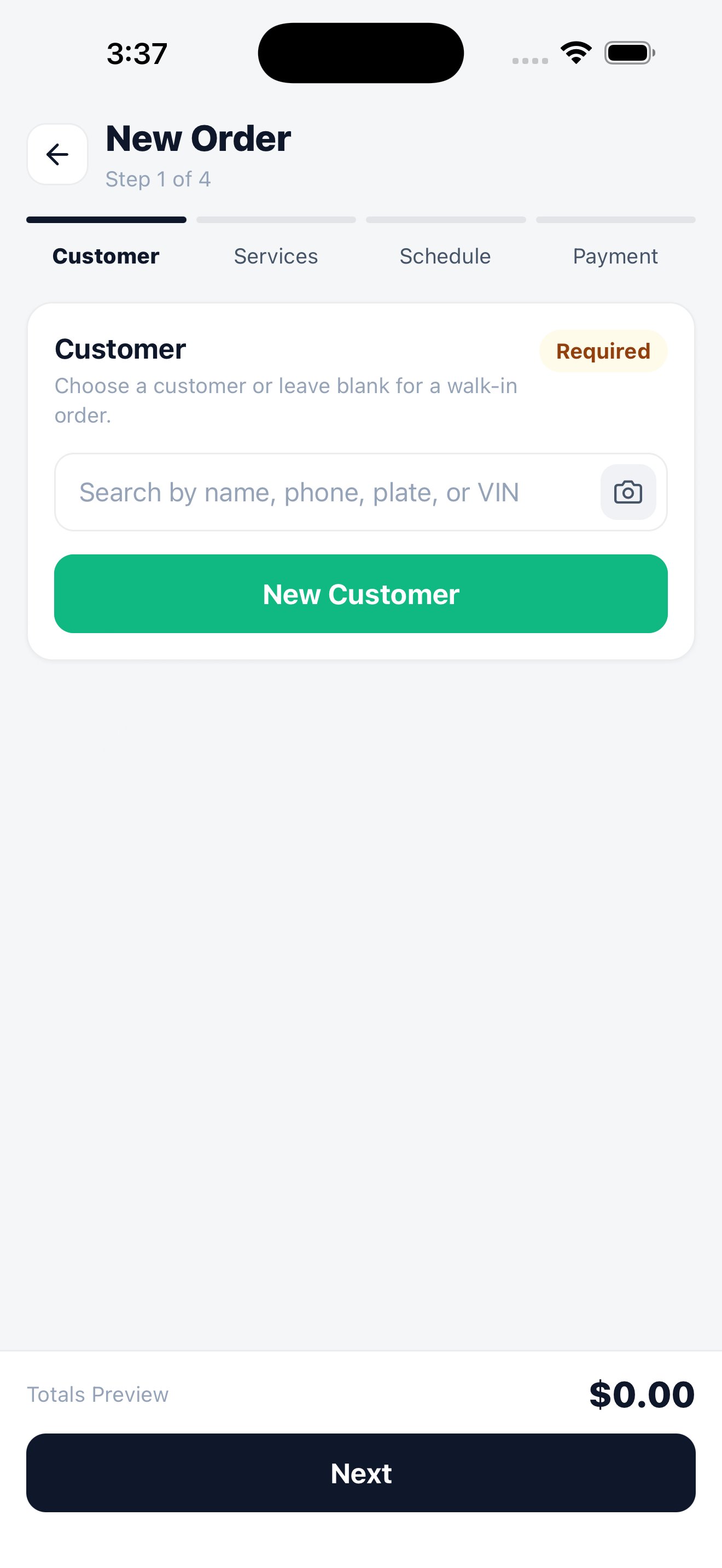
Step 1 of 4. The totals preview updates as you add services.
1
Customer
Search by name, phone, plate, or VIN — or tap the camera icon to scan a VIN or plate and let the app find the vehicle and its owner. Leave it blank for a walk-in, or tap New Customer to create one without leaving the wizard.
2
Services
Add services from your catalog. Prices come from your service list, and the totals preview updates as you go.
3
Schedule
Set the date, time, and who’s doing the work.
4
Payment
Choose how the customer pays. You can leave the order unpaid and collect later from the order itself.
Work an order in the field
Open any order to update it as the job moves:- Change status as work starts and finishes
- Add materials used on the job, so cost of goods stays accurate
- Attach photos before and after, straight from the camera
- Capture a signature where your workflow requires one
- Collect payment with Tap to Pay, or record cash
Get paid on the spot
Orders with an outstanding balance show Tap to Pay on the card and inside the record. Tap it, hold the customer’s card or phone to your iPhone, and the payment posts to the order — no card reader involved.Tap to Pay on iPhone
Requirements, setup, and what to do when a payment fails.
Related
VIN & plate scan
Identify a vehicle with the camera instead of typing.
Photo documentation
Attach before-and-after photos to the order.
Orders on the web
The same orders, with the wider desktop layout.
Calendar
See the same jobs laid out by day, week, or month.