> ## Documentation Index
> Fetch the complete documentation index at: https://docs.autodetailcrm.com/llms.txt
> Use this file to discover all available pages before exploring further.
# Quotes & Leads on Mobile
> Build and send quotes, convert them to orders, and work incoming leads without going back to a desk.
Both modules live under **Menu**, and both feed the order pipeline.
## Quotes
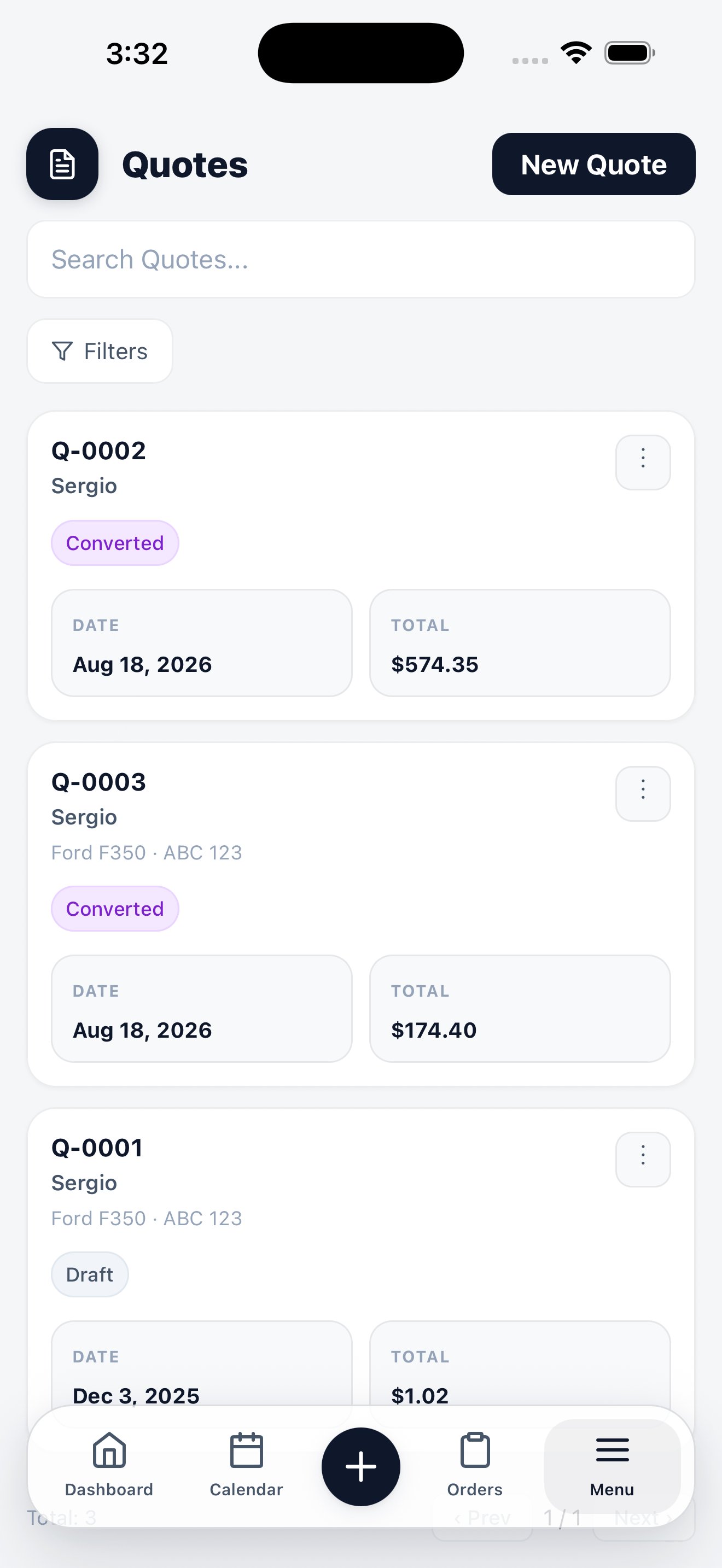
Each quote card shows its number, the customer, the date, the total, and where it stands — **Draft** while you're still working on it, **Converted** once it has become an order.
Tap **New Quote** to build one: pick the customer, add services, and the total assembles as you go. When the customer says yes, convert the quote into an order — the services, pricing, and customer carry across, so nothing is retyped.
Quoting on site is the point of having this on the phone. Walk the vehicle, add services as you spot the work, and hand the customer a number before you leave the driveway.
## Leads
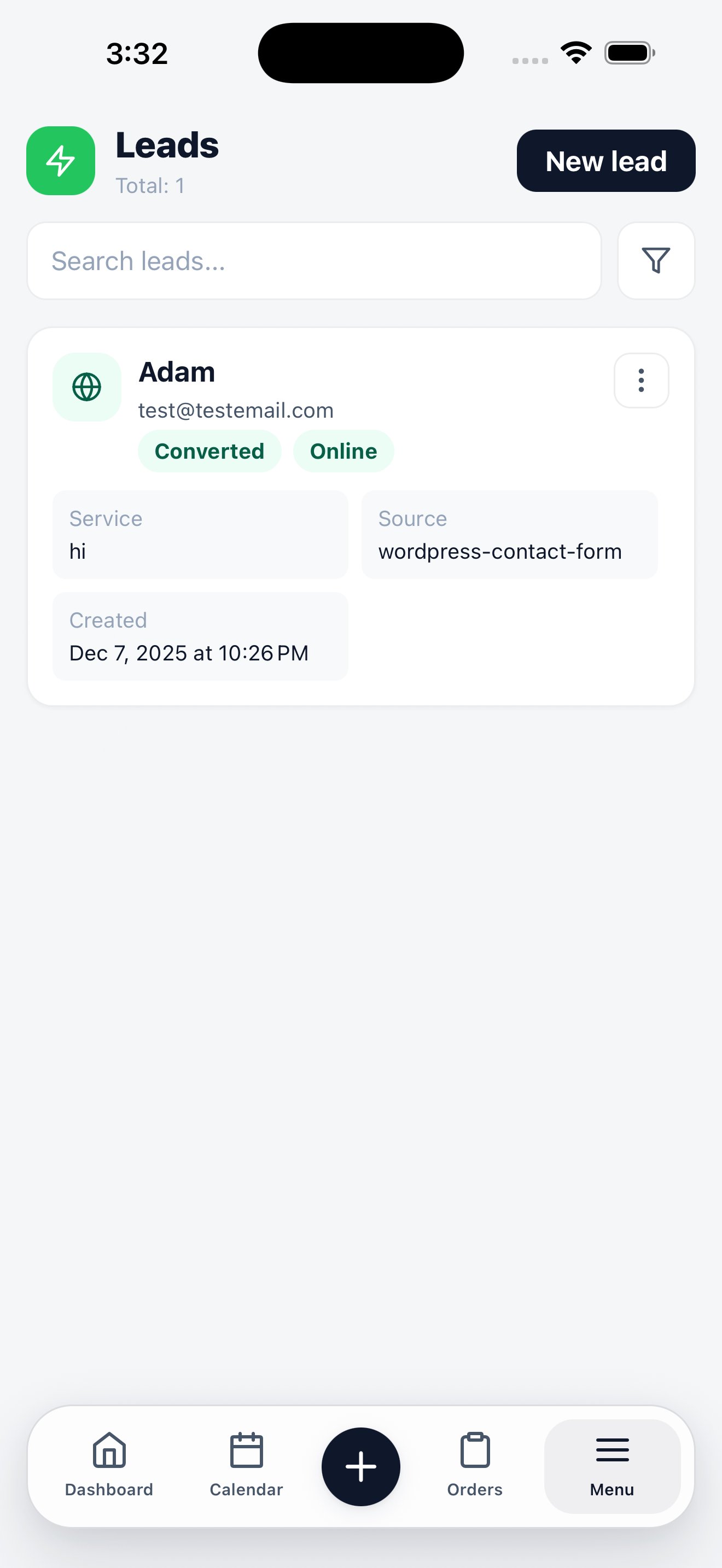
Leads are inbound enquiries — from your booking page, your website form, or entered by hand. Each shows the contact details, the service asked for, the source it arrived from, and when it landed.
Status chips tell you what has happened to a lead: whether it came in **Online**, and whether it has been **Converted** into a customer and an order.
Tap **New lead** to record one you took over the phone. Convert a lead when the job is confirmed, and the customer record is created from the lead's details.
## Related
Quote templates, sending, and expiry.
Lead sources, routing, and conversion.
Getting your site's form into this list.
Let customers book themselves.