> ## Documentation Index
> Fetch the complete documentation index at: https://docs.autodetailcrm.com/llms.txt
> Use this file to discover all available pages before exploring further.

# Getting Started on Mobile

> Install the iOS app, sign in to your workspace, and learn the navigation model in five minutes.

## Install the app

The app is on the App Store as **Auto Detailing CRM**. It runs on iPhone.

<Card title="Auto Detailing CRM on the App Store" icon="apple" href="https://apps.apple.com/us/app/auto-detailing-crm/id6755504326">
  Download and install, then open the app and sign in.
</Card>

## Sign in

Sign in with the same email and password you use on the web, or with the Google account attached to your workspace. There is no separate mobile account — the app opens the same workspace with the same data and the same permissions.

<Warning>
  Your role travels with you. A technician who signs in on the phone sees exactly what their role allows on the web — no more. Adjust access in **Settings → Staff & Shifts → Permissions**.
</Warning>

If your workspace hasn't been set up yet, the app walks you through creating it before it shows you a dashboard.

## Find your way around

Five controls sit at the bottom of every screen:

| Control       | What it opens                                                |
| ------------- | ------------------------------------------------------------ |
| **Dashboard** | Revenue, alerts, and today's jobs                            |
| **Calendar**  | Month, week, and day scheduling                              |
| **+**         | Create an order, quote, lead, customer, or vehicle           |
| **Orders**    | The order list, with search and filters                      |
| **Menu**      | Customers, vehicles, sales, catalog, reporting, and settings |

The **+** button is available from every screen. You never have to navigate to a module to start a record in it.

## Stay on top of changes

<div className="phone-figure">
  <div className="phone-frame phone-frame--sm">
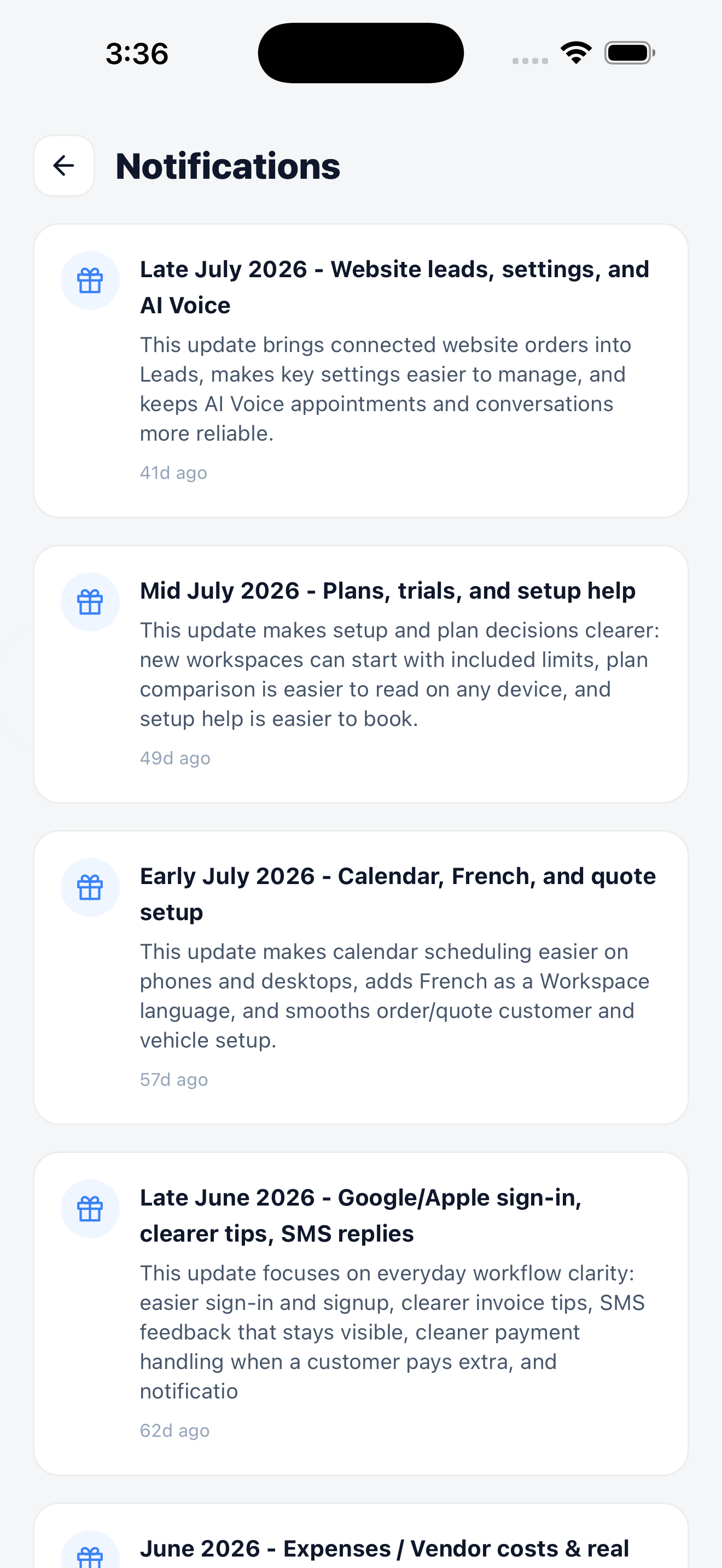
    <img src="https://mintcdn.com/adcrm/S1CKTz6_LFbXLYWl/images/mobile/notifications.png?fit=max&auto=format&n=S1CKTz6_LFbXLYWl&q=85&s=e351887a6d83c72491f7296ef5cecc28" alt="Notifications screen listing product updates with dates and short summaries." width="1320" height="2868" data-path="images/mobile/notifications.png" />
  </div>

  <p className="phone-caption">Notifications collects product updates and workspace alerts.</p>
</div>

**Notifications** collects workspace alerts and product updates. **Menu → What's New** holds the full release history, so you can catch up on what changed while you were in the field.

## What to do first
<Steps>
  <Step title="Check your dashboard">
    Confirm the numbers match what you expect. Owners land on Business Cockpit; technicians land on My Day.
  </Step>

  <Step title="Open today's calendar">
    Switch to **day** view and confirm today's jobs and shifts look right.
  </Step>

  <Step title="Create a test order">
    Tap **+ → Order** and walk the four steps. Delete it afterwards.
  </Step>

  <Step title="Set up Tap to Pay">
    If you collect payment in the field, connect Stripe and enable Tap to Pay before your first job.
  </Step>
</Steps>

<Card title="Set up Tap to Pay on iPhone" icon="contactless-payment" href="/mobile/tap-to-pay">
  Accept contactless cards and Apple Pay on the phone itself.
</Card>
