> ## Documentation Index
> Fetch the complete documentation index at: https://docs.autodetailcrm.com/llms.txt
> Use this file to discover all available pages before exploring further.
# Customers & Vehicles on Mobile
> Full customer and vehicle records on the phone, with camera scanning to find a vehicle without typing.
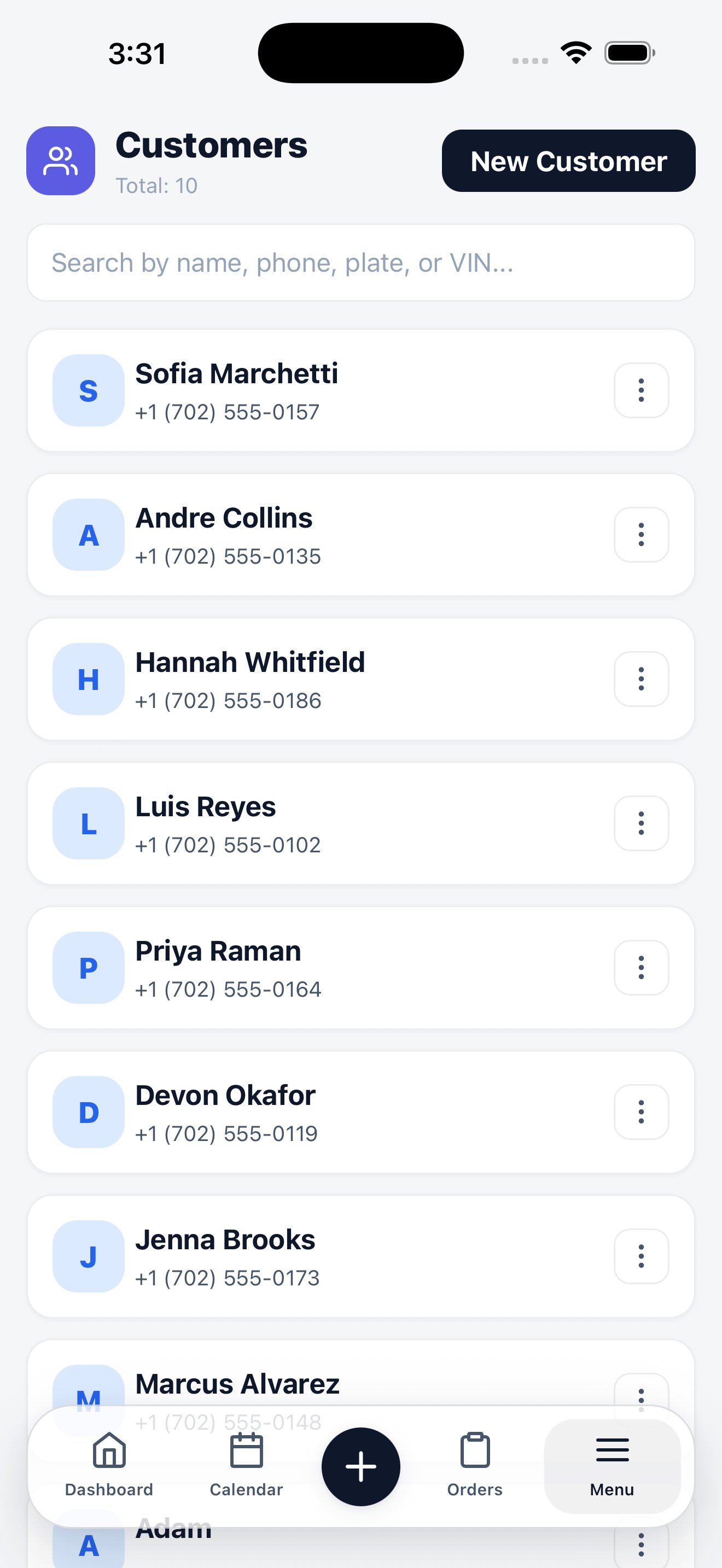
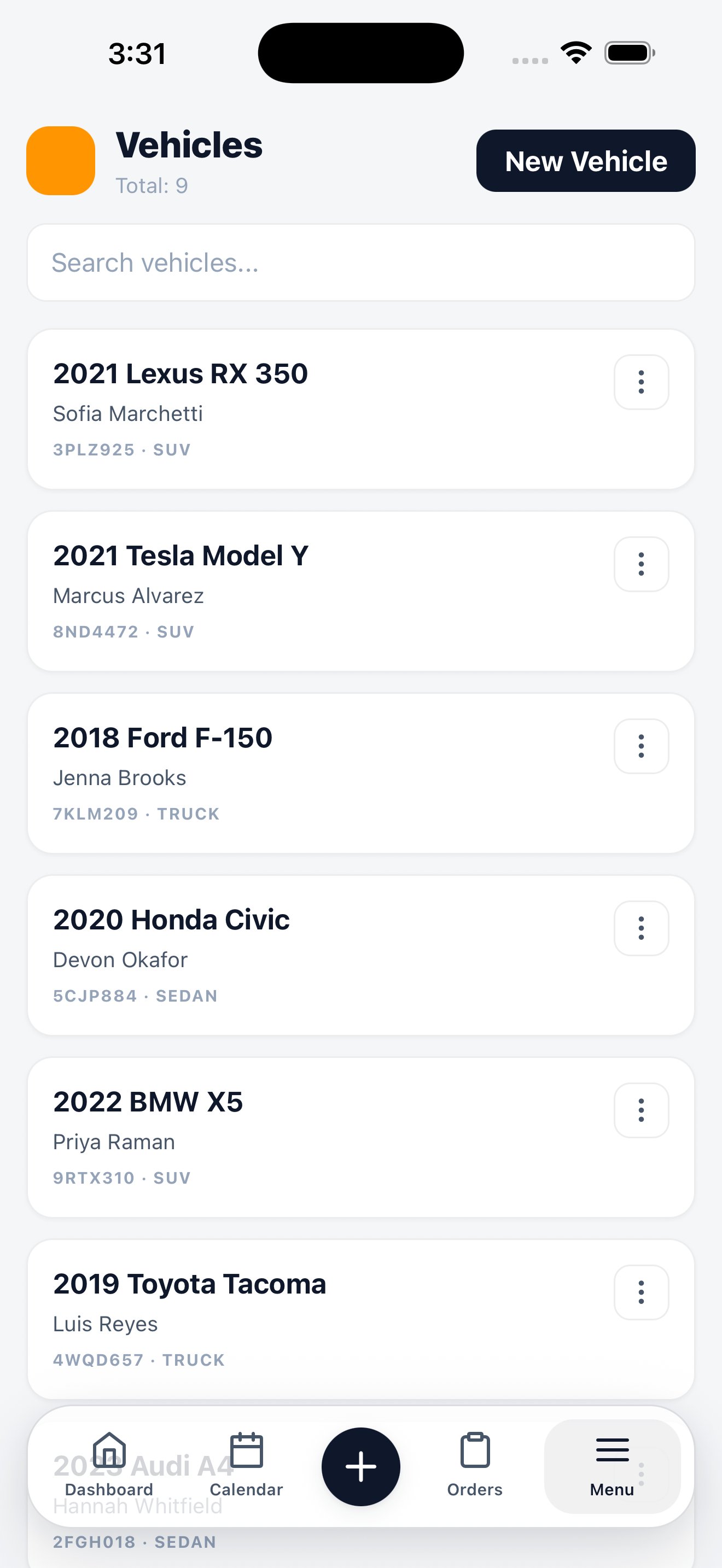
Both modules live under **Menu**. They hold the same records as the web app — creating a customer on the phone creates it everywhere.
## Customers
Search by name, phone, or email. Open a record to see and edit contact details, and to reach the customer's vehicles and order history.
Create a customer three ways:
* **Menu → Customers → New Customer**
* **+ → Customer** from any screen
* Inside the order wizard, without leaving the order you're building
## Vehicles
Each vehicle shows year, make, model, and its owner. Open one to edit its details or see the work it's had done.
The fastest way to add a vehicle in the field is the camera. Scan the VIN plate or the license plate and the app fills the fields it can read.
How scanning works, what it fills in, and when to fall back to typing.
Scanning also works as a lookup. If the vehicle already exists in your workspace, the scan matches it and pulls its owner onto the order — no searching required.
## Related
Customer records, history, and merging.
Vehicle records and body type configuration.