> ## Documentation Index
> Fetch the complete documentation index at: https://docs.autodetailcrm.com/llms.txt
> Use this file to discover all available pages before exploring further.

# Catalog on Mobile

> Services and pricing, inventory levels, and membership plans — all editable from the phone.

What you sell, what you stock, and what customers subscribe to. All three live under **Menu**.

<div className="phone-row">
  <div className="phone-figure">
    <div className="phone-frame phone-frame--sm">
      <img src="https://mintcdn.com/adcrm/S1CKTz6_LFbXLYWl/images/mobile/services.png?fit=max&auto=format&n=S1CKTz6_LFbXLYWl&q=85&s=e830fa4d4d41c606fc44c810d2342ee2" alt="Mobile services list with service names, prices, and Active and Fixed price chips." width="1320" height="2868" data-path="images/mobile/services.png" />
    </div>

    <p className="phone-caption">Services</p>
  </div>

  <div className="phone-figure">
    <div className="phone-frame phone-frame--sm">
      <img src="https://mintcdn.com/adcrm/S1CKTz6_LFbXLYWl/images/mobile/inventory.png?fit=max&auto=format&n=S1CKTz6_LFbXLYWl&q=85&s=6474a3090de8f05fcc36c557ff93f293" alt="Mobile inventory screen showing an item with price and On Hand, Reserved, Available, and Min Stock counts, plus a low stock filter." width="1320" height="2868" data-path="images/mobile/inventory.png" />
    </div>

    <p className="phone-caption">Inventory</p>
  </div>

  <div className="phone-figure">
    <div className="phone-frame phone-frame--sm">
      <img src="https://mintcdn.com/adcrm/S1CKTz6_LFbXLYWl/images/mobile/memberships.png?fit=max&auto=format&n=S1CKTz6_LFbXLYWl&q=85&s=36fa14719ef6ca1efac273b2ecbcc4ff" alt="Mobile memberships screen on the Plans tab showing membership plans with price, billing interval, and discount." width="1320" height="2868" data-path="images/mobile/memberships.png" />
    </div>

    <p className="phone-caption">Memberships</p>
  </div>
</div>

## Services

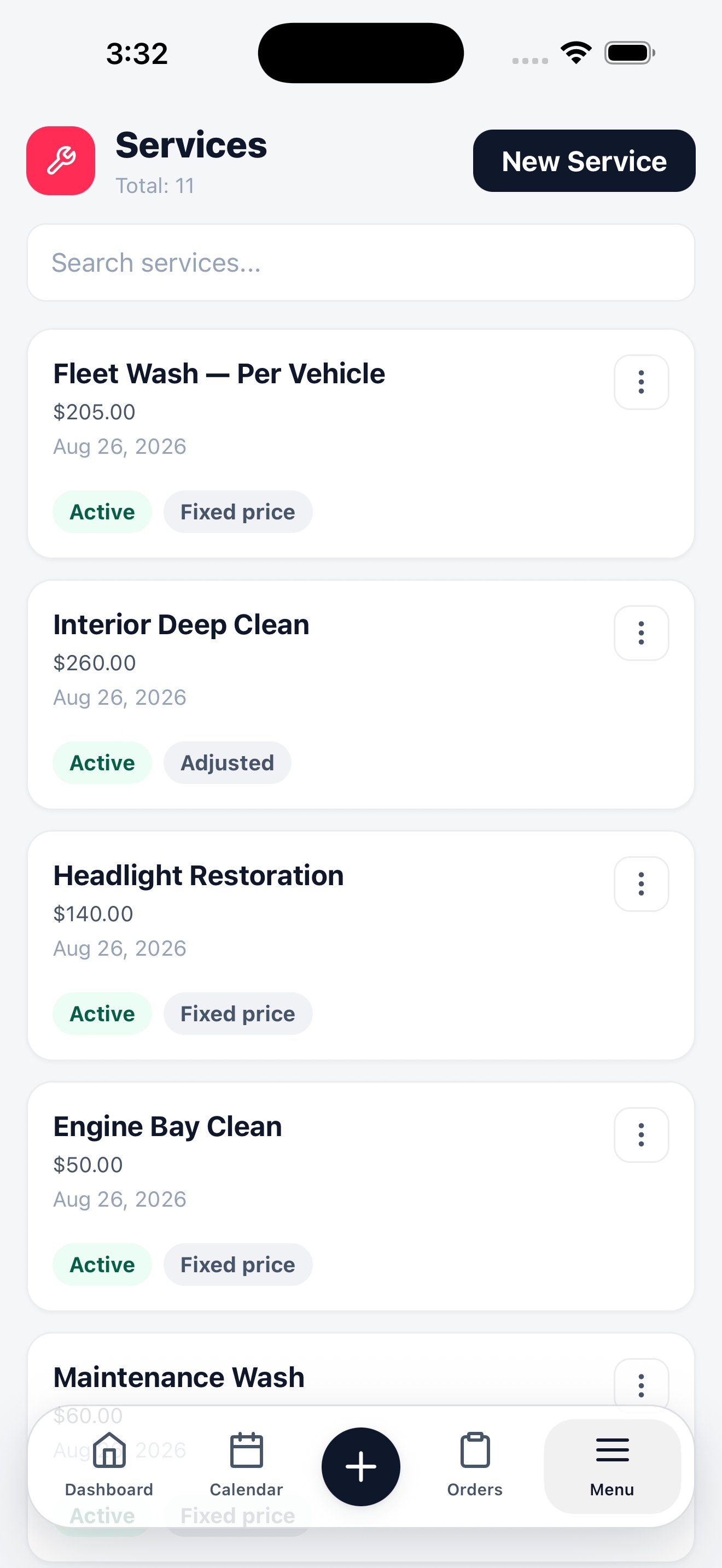
Your price list. Each service shows its name, price, and whether it's **Active** — inactive services stay in your history but stop appearing in the order wizard.

The **Fixed price** chip means the price is set. Services priced by vehicle size or condition show as **Adjusted** instead, and take their final price when they're added to an order.

Tap **New Service** to add one from the field. It becomes available in the order wizard immediately.

## Inventory

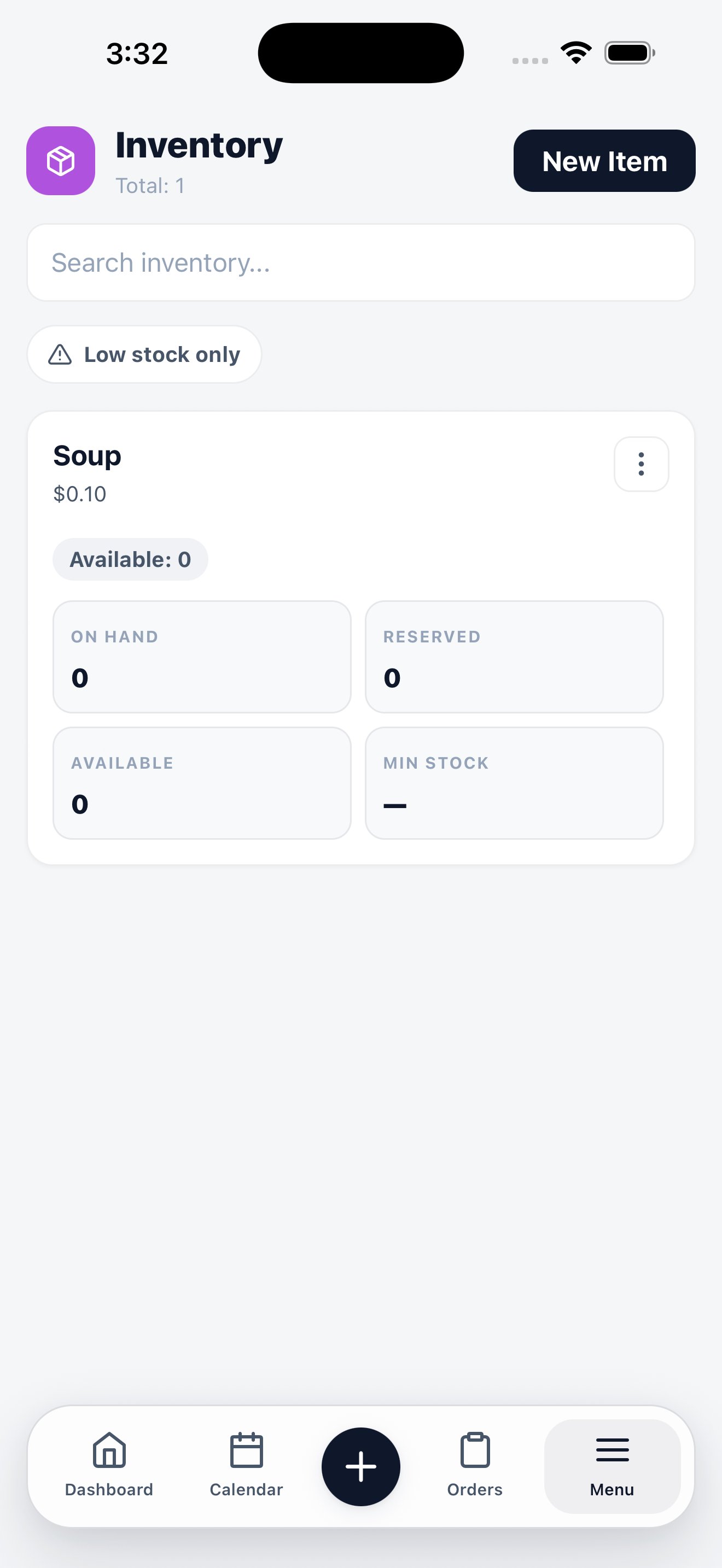
Materials and stock. Each item carries four counts that answer different questions:

| Count         | Meaning                                               |
| ------------- | ----------------------------------------------------- |
| **On Hand**   | What's physically in stock                            |
| **Reserved**  | Committed to orders that haven't been completed       |
| **Available** | On Hand minus Reserved — what you can actually commit |
| **Min Stock** | The level that triggers a low stock warning           |

The **Low stock only** filter shows what needs reordering. Materials consumed on a job are recorded from inside the order, which is what keeps cost of goods on the dashboard accurate.

## Memberships

Two tabs:

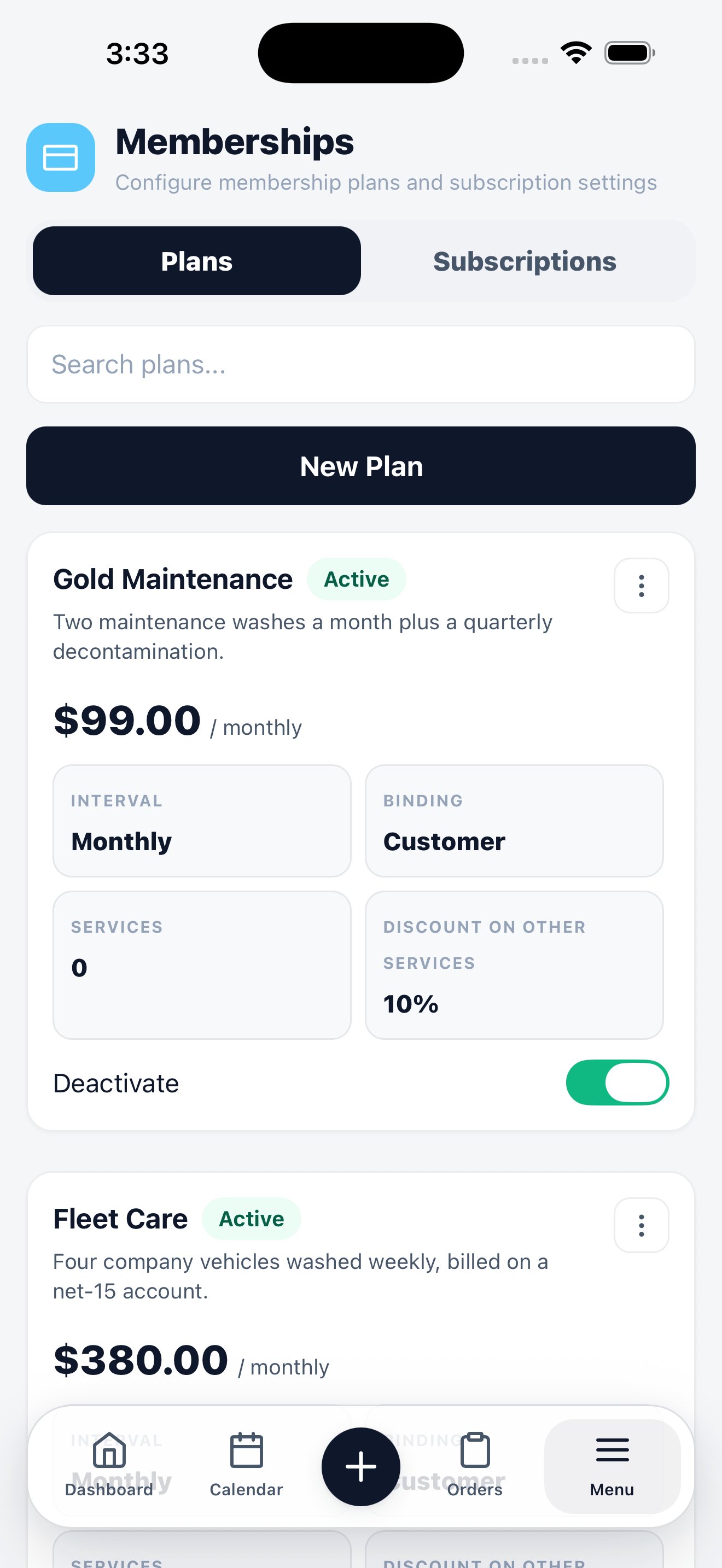
* **Plans** — the membership products you offer. Each shows its price, billing interval, what's included, and the discount members get on services.
* **Subscriptions** — the customers currently on a plan.

Tap **New Plan** to create a plan. Deactivating a plan stops new signups without cancelling anyone already on it.

## Related

<CardGroup cols={2}>
  <Card title="Services & pricing on the web" icon="desktop" href="/guides/services-pricing">
    Pricing rules, categories, and vehicle-size adjustments.
  </Card>

  <Card title="Inventory on the web" icon="desktop" href="/guides/inventory">
    Stock management and reorder workflow.
  </Card>

  <Card title="Memberships on the web" icon="desktop" href="/guides/memberships">
    Plan design, billing, and member benefits.
  </Card>
</CardGroup>