> ## Documentation Index
> Fetch the complete documentation index at: https://docs.autodetailcrm.com/llms.txt
> Use this file to discover all available pages before exploring further.

# Calendar on Mobile

> Month, week, and day scheduling on the phone, with filters for orders, shifts, busy time, staff, and job status.

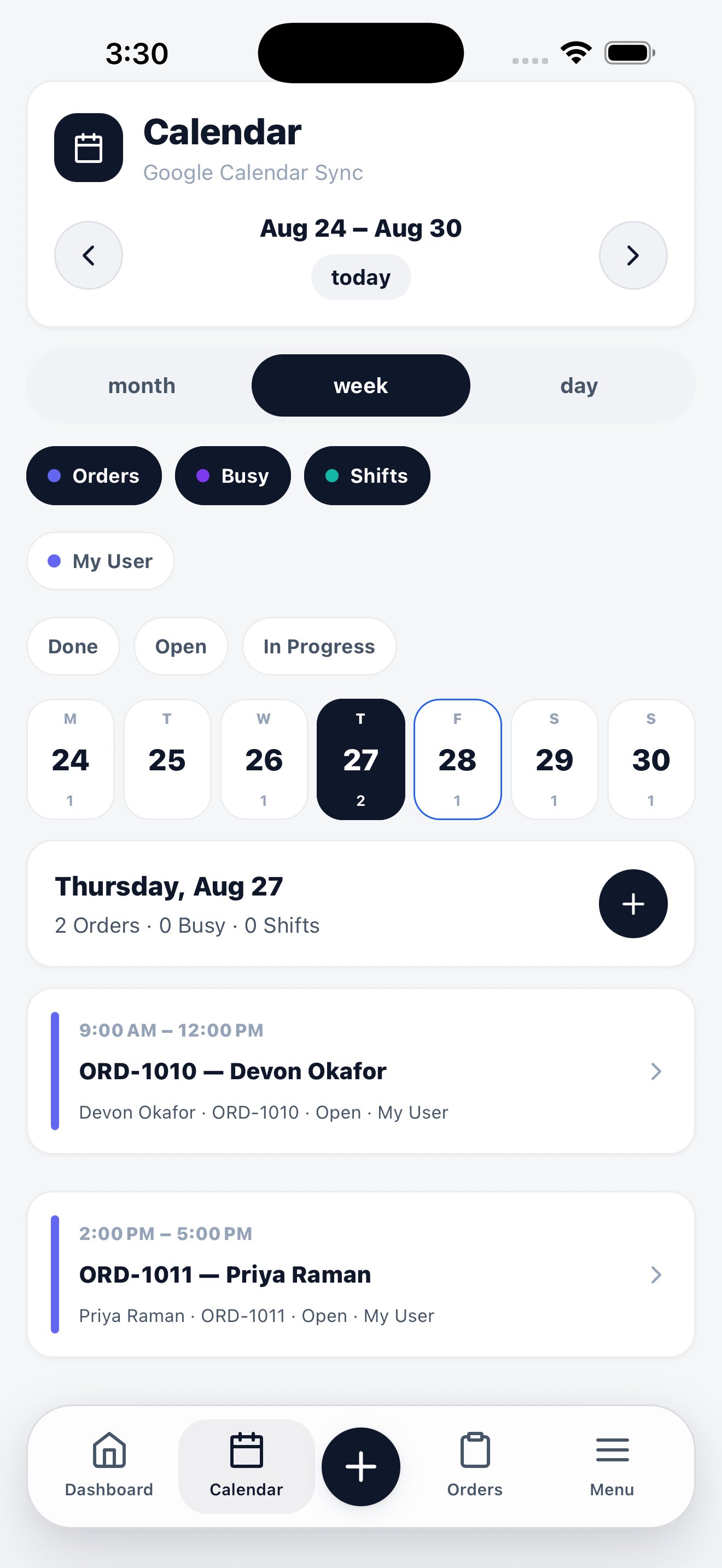
The mobile calendar is the full scheduling surface, not a read-only agenda. It shows orders, staff shifts, and busy time together, and it filters down to whatever you're trying to see.

<div className="phone-figure">
  <div className="phone-frame">
    <img src="https://mintcdn.com/adcrm/S1CKTz6_LFbXLYWl/images/mobile/calendar.png?fit=max&auto=format&n=S1CKTz6_LFbXLYWl&q=85&s=a9722973b84135e8de73f37b5a204375" alt="Mobile calendar in week view with Orders, Busy, and Shifts filters, a staff filter, status filters, a day strip, and the day's job list underneath." width="1320" height="2868" data-path="images/mobile/calendar.png" />
  </div>

  <p className="phone-caption">Week view, with the selected day's jobs listed underneath.</p>
</div>

## Three views

| View      | Use it for                                                    |
| --------- | ------------------------------------------------------------- |
| **month** | Spotting load across the month — each day shows a job count   |
| **week**  | The working view — seven days across the top, jobs underneath |
| **day**   | A single day in detail, job by job                            |

Switch with the **month / week / day** control at the top. Move between periods with the arrows, and jump back with **today**.

## Filters

Three layers of filtering stack on top of each other:
<Steps>
  <Step title="What kind of event">
    **Orders**, **Busy**, and **Shifts** toggle each event type on and off. Turn off Shifts when you only care about jobs.
  </Step>

  <Step title="Whose">
    The staff filter narrows the calendar to one person. Technicians see themselves by default.
  </Step>

  <Step title="What state">
    **Done**, **Open**, and **In Progress** filter jobs by status — useful for finding what's still outstanding today.
  </Step>
</Steps>

## The day panel

Selecting a day opens its detail underneath the calendar: a header with the date and a count of orders, busy blocks, and shifts, then each job as a card with its time window, order number, customer, status, and assignee. Tap a card to open the order.

The **+** on the day header creates a new order already dated to that day.

## Google Calendar sync

When Google Calendar sync is connected for your workspace, the mobile calendar reflects it — the header shows the sync state so you know whether what you're looking at is complete.

<Card title="Calendar on the web" icon="desktop" href="/guides/calendar">
  Scheduling rules, shift setup, and Google Calendar connection.
</Card>
